> This page is for Code Components.
> For clean Markdown of any page, append .md to the page URL.
> For a complete documentation index, see https://developers.webflow.com/llms.txt.
> For AI client integration (Claude Code, Cursor, etc.), connect to the MCP server at https://developers.webflow.com/_mcp/server.
# Component architecture
> Learn how code components work internally and their architectural constraints
**Code components run as isolated React applications.** Each one mounts in its own [Shadow DOM](https://developer.mozilla.org/en-US/docs/Web/API/Web_components/Using_shadow_DOM) container with a separate React root, creating a sandboxed environment that prevents conflicts with the main page or other components.
<>
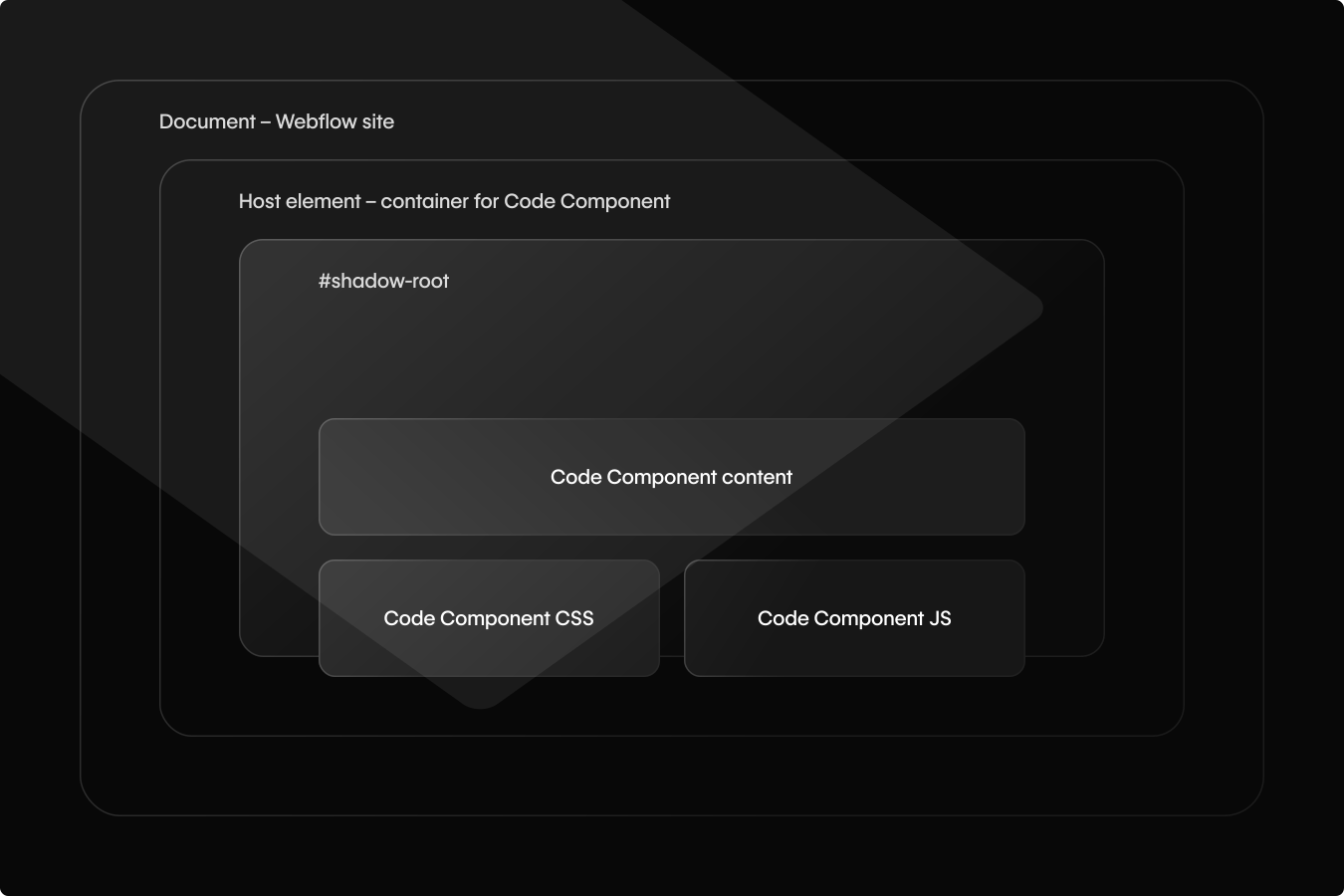
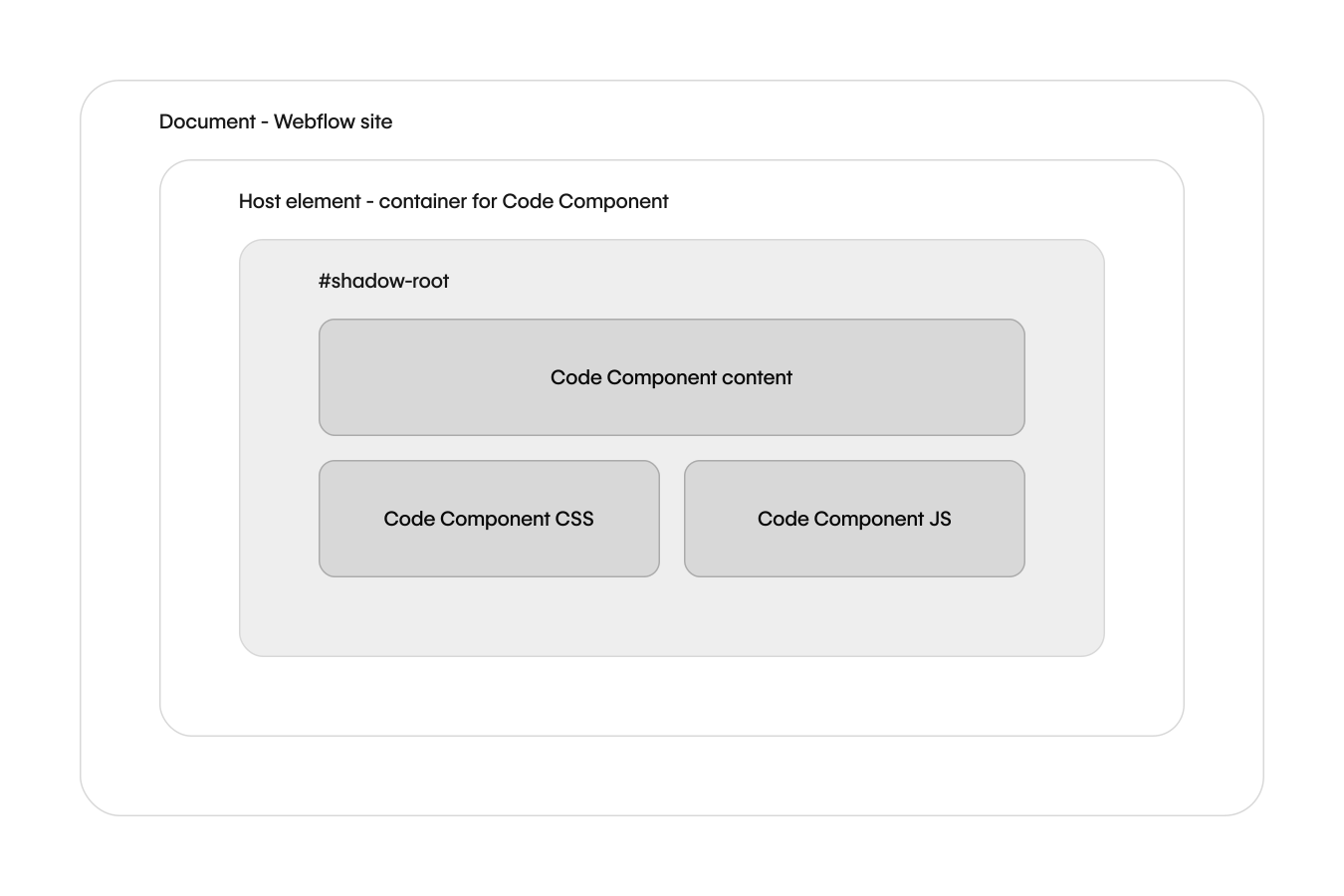
Because of this isolation, each imported React component manages its own dependencies, state, and context. When building, it’s important to consider how your components handle state and communicate with each other.
#### Key concepts
* **Shadow DOM isolation** - Styles and DOM elements are contained.
* **Separate React roots** - No shared state or context between components.
* **Server-side rendering** - SSR provides initial HTML
* **Client-side execution** - All interactivity runs in the browser
This architecture affects how you handle state management, component communication, data fetching, and styling. Use the following patterns to manage these constraints when building your React components for import into Webflow.
## Shadow DOM and React roots
Each code component runs in its own Shadow DOM container with a separate React root. This sandboxed environment prevents conflicts with the main page and other components:
* Your component's styles won't leak to the page
* Page styles won't override your component's styles
* You must explicitly import external styles (site variables, tag selectors, etc.)
**Composing components with slots**
When composing code components using slots, parent and child components may not share state through React context. Each child component renders in its own Shadow DOM container, which isolates component state sharing.
Shadow DOM impacts how you style components as well as your ability to use third-party libraries. To learn more about styling components within the Shadow DOM, see the [styling components guide](/code-components/styling-components) and [frameworks and libraries guide](/code-components/frameworks-and-libraries).
## Server-side rendering (SSR)
Webflow supports server-side rendering (SSR) for code components. SSR generates initial HTML for the component on the server, which can improve perceived performance and SEO. After the page loads, Webflow automatically hydrates the component in the browser so that it becomes fully interactive.
Webflow enables SSR by default, but you can disable it by setting `ssr` to `false` in the component's definition file.
**`Chart.webflow.tsx`**
```typescript title="Chart.webflow.tsx"
declareComponent(Component, {
name: "Chart",
description: "An interactive chart component",
group: "Data Visualization",
options: {
ssr: false
},
});
```
### When to disable SSR
You’ll want to turn off SSR for code components that rely on client-only behavior or that don’t benefit from server-rendered HTML. Common cases include:
* **Browser APIs:** Components that use window, document, `localStorage`, or other APIs not available during SSR.
* **Dynamic or personalized content:** User-specific dashboards, authenticated views, or components that need client data to render correctly.
* **Heavy or interactive UI:** Charts, 3D scenes, maps, or animation-driven elements that would bloat the server-rendered HTML and be re-rendered anyway.
* **Non-deterministic output:** Anything that renders differently on the server vs. client (for example, random numbers, time-based values).
> **Tip**
>
> If the HTML output helps with SEO or improves the first paint, keep SSR on. If the component is purely interactive, client-specific, or browser-dependent, disable SSR.
> **React Server Components are not supported**
>
> React Server Components aren't supported in code components. All code components must use standard React components.
## Communicating between components
Because each code component runs in its own React root, they can’t share React Context or state directly. Instead, use one of the following patterns to manage state across multiple components.
### Sharing state across components
#### URL parameters
Store state in the URL using `URLSearchParams` for shareable, bookmarkable state. This is useful for search queries, filters, navigation state, or pagination.
**`Filter.tsx`**
```tsx title="Filter.tsx"
// Set state
const url = new URL(window.location.href);
url.searchParams.set('filter', 'active');
window.history.pushState({}, '', url);
// Read state
const params = new URLSearchParams(window.location.search);
const filter = params.get('filter'); // 'active'
```
#### Browser storage
Use `localStorage` for persistent data or `sessionStorage` for session-only data. Only store non-sensitive information since this data is visible to users.
**`ThemePreference.tsx`**
```tsx title="ThemePreference.tsx"
// localStorage - persists across browser sessions
window.localStorage.setItem('userPreferences', JSON.stringify({ theme: 'dark' }));
const prefs = JSON.parse(localStorage.getItem('userPreferences'));
// sessionStorage - cleared when tab closes
window.sessionStorage.setItem('tempData', 'value');
```
Best for: user preferences, form data, temporary state.
#### Nano Stores
[Nano stores](https://github.com/nanostores/nanostores) is a lightweight state management library for cross-component communication, and is a useful alternative to React Context for sharing state between components.
#### Using Nano Stores
#### Install Nano Stores
In your React project, install Nano Stores by running the following command in your terminal:
```bash
npm install nanostores @nanostores/react
```
#### Create a store
A store represents is external shared state: any component can access, modify, or subscribe to it. Create a file to create the store. Use Nano Stores' `atom()` to make a shared, reactive variable.
```tsx title={"Store.tsx"}
import { atom } from 'nanostores';
// Shared state store - any component can read/write to this
export const $counter = atom(0);
```
**Note:** This example uses an atomic store with a single value. See the [Nano Stores documentation](https://github.com/nanostores/nanostores) for more information on the different types of stores.
#### Read a store in a component
In your component, subscribe to the store using `useStore()` hook to automatically update when the value changes:
```tsx title={"Counter.tsx"}
import React from 'react';
import {useStore} from '@nanostores/react';
import {$counter} from './store';
// Displays the current count - automatically updates when store changes
export const Counter = () => {
const count = useStore($counter); // Subscribe to store changes
return(
Count: {count}
)
};
```
#### Update the store from a separate component
In the `Clicker` component, update the store using `set()` to change the value:
```tsx title={"Clicker.tsx"}
import React from 'react';
import {Button} from './Button';
import {$counter} from './Store';
interface ClickerProps {
text: string;
variant: 'primary' | 'secondary';
}
// Button that increments the shared counter when clicked
export const Clicker = ({text, variant}: ClickerProps) => {
const clicked = React.useCallback(() => $counter.set($counter.get() + 1), []); // Update shared state
return