> This page is for Code Components.
> For clean Markdown of any page, append .md to the page URL.
> For a complete documentation index, see https://developers.webflow.com/llms.txt.
> For AI client integration (Claude Code, Cursor, etc.), connect to the MCP server at https://developers.webflow.com/_mcp/server.
# Text Node
> Configure a Text Node property for a code component
Add a Text Node property to your component. In the Webflow designer, designers can edit the text content of the component on the canvas or via the properties panel.
## Syntax
```tsx
// Prop definition
props.TextNode({
name: string,
group?: string,
tooltip?: string,
defaultValue?: string,
multiline?: boolean,
})
// Prop value
ReactNode
```
### Prop definition
Define the Text Node prop in your Webflow code component with a name. Optionally, you can add a group and tooltip text.
```tsx
props.TextNode({
name: string,
group?: string,
tooltip?: string,
defaultValue?: string,
multiline?: boolean,
})
```
#### Properties
* `name`: The name for the property.
* `multiline`: Whether the property allows multiple lines of text. (optional)
* `group`: The group for this property. (optional)
* `tooltip`: The tooltip for the property. (optional)
* `defaultValue`: Default value for all component instances. (optional)
#### Example
```tsx title={"InfoSection.webflow.tsx"}
import { declareComponent } from "@webflow/react";
import { props } from "@webflow/data-types";
import { InfoSection } from "./InfoSection";
export default declareComponent(InfoSection, {
name: "Info Section",
description: "A component with a Text Node property",
props: {
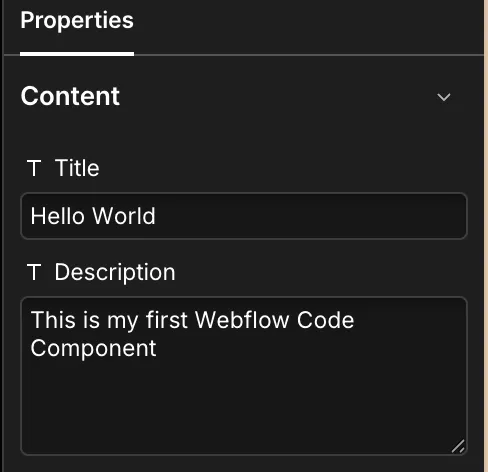
title: props.TextNode({
name: "Title",
group: "Content",
defaultValue: "Hello World",
}),
description: props.TextNode({
name: "Description",
multiline: true,
group: "Content",
defaultValue: "This is my first Webflow Code Component",
}),
},
});
```
### Prop value
The Text Node prop provides formatted HTML content to your React component as a `ReactNode`.
```tsx
ReactNode
```
#### Properties
* `n/a`
#### Webflow properties panel
#### Example
```tsx title={"InfoSection.tsx"}
import React from "react";
interface InfoSectionProps {
title: React.ReactNode;
description: React.ReactNode;
}
export const InfoSection = ({ title, description }: InfoSectionProps) => {
return (
<>
{title}
{description}
);
};
```
## When to use
Use a Text Node prop when you want designers to:
* Edit text content in the webflow editor
* Create text content with HTML markup
* Add structured content like headings and lists
## Best practices
* Provide meaningful default values so the component renders when added to the canvas
* Handle missing content gracefully
* Consider content styling and layout
* Test with various HTML structures