> This page is for DevLink.
> For clean Markdown of any page, append .md to the page URL.
> For a complete documentation index, see https://developers.webflow.com/llms.txt.
> For AI client integration (Claude Code, Cursor, etc.), connect to the MCP server at https://developers.webflow.com/_mcp/server.
# Quickstart: DevLink Export
> Export your Webflow components to a React project with DevLink
In this guide, you'll learn how to configure DevLink and export Webflow components to a React project. This guide uses [Next.js](https://nextjs.org/), but you can export and use components in any React-based framework.
**Prerequisites**
Before running this quickstart, make sure you have:
* A Webflow account and Webflow site with components to export. You can also clone a [DevLink template](https://webflow.com/made-in-webflow/devlink?cloneable=true) from the Webflow marketplace — these templates include components and styles already configured for export.
* [A paid Workspace plan or a CMS, Business, or Ecommerce Site plan](https://webflow.com/pricing).
* Node.js v22 or higher and `npm` installed.
* `@webflow/webflow-cli` v1.19.0 or later (installed in step 2).
* Basic familiarity with React.
## 1. Prepare your Webflow components
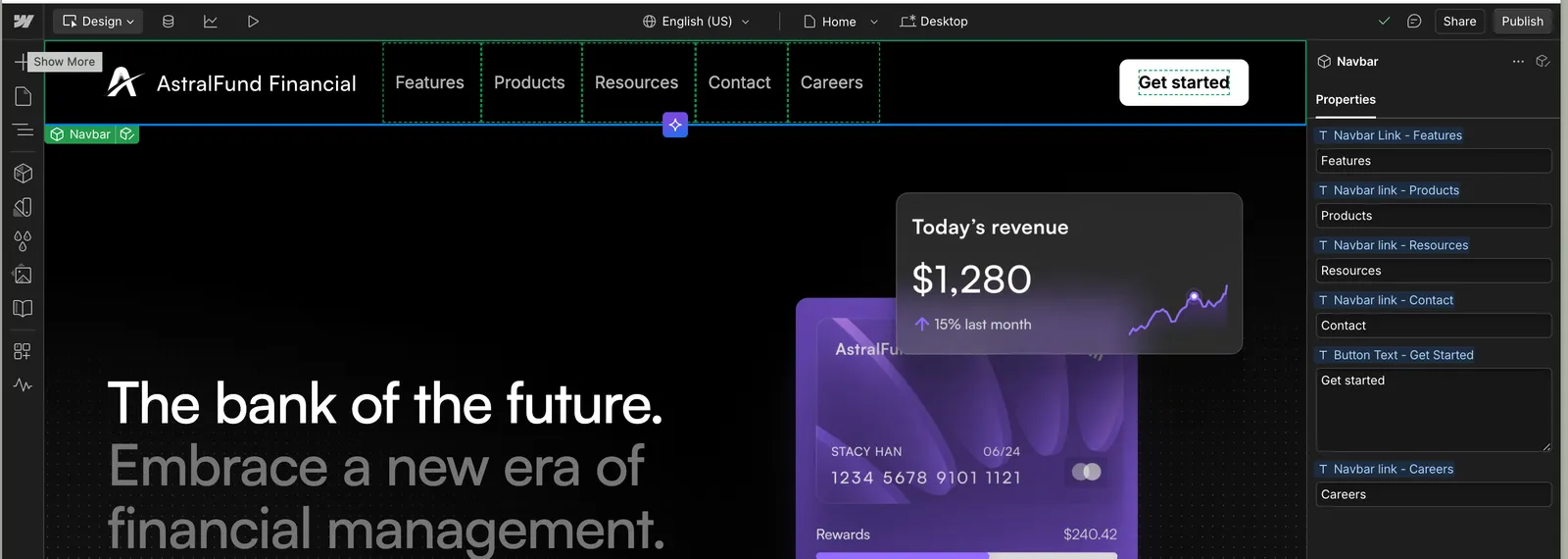
DevLink exports [Components](https://help.webflow.com/hc/en-us/articles/33961303934611-Components-overview) only, not every element on the canvas. If the elements you want to export aren't components yet, convert them first:
1. Select an element or group of elements.
2. Right-click the elements and then click **Create Component**.
3. Give the component a clear, descriptive name.
## 2. Set up your React project
#### Create or open a React project
If you don't have a React-based application, run the following command in your terminal to start with a simple application:
```bash
npx create-next-app@latest my-devlink-app
cd my-devlink-app
```
Follow the prompts to configure your project with your preferred options.
#### Install the Webflow CLI
Install the [Webflow CLI](/cli/reference/webflow-cli) as a dev dependency in your project:
```bash
npm install -D @webflow/webflow-cli@latest
```
Or, to make `webflow` available outside any single project, install it globally:
```bash
npm install -g @webflow/webflow-cli@latest
```
## 3. Export your components
#### Run the export
From the root of your React project, run:
```bash
webflow devlink export
```
The first time you run it, the CLI authenticates you in your browser and walks you through a short setup. Accept the defaults to export every component into a `./webflow` folder with style isolation enabled, or follow the prompts to filter by component name or group. Your answers are saved to `webflow.json` so future runs don't prompt again — see [Configuration options](/devlink/docs/component-export/installation#configuration-options) to tune them later.
The CLI populates the `webflow/` folder with your React components, the generated stylesheets, a `DevLinkProvider` for runtime wiring, and the supporting modules they depend on. See [What's exported](/devlink/docs/component-export/whats-exported) for the full breakdown.
#### Verify the exported code
Look for `@warning` tags that indicate that DevLink was not able to export an identifier, as described in [Name changes](/devlink/docs/component-export/whats-exported#name-changes).
## 4. Use the exported components
#### Configure import aliases
Add a `webflow/*` alias to the `paths` section of your `tsconfig.json` so you can import the exported components by name instead of using long relative paths:
**`tsconfig.json`**
```json title="tsconfig.json"
{
"compilerOptions": {
"paths": {
"webflow/*": ["./webflow/*"]
}
}
}
```
With the alias in place, `import { Button } from 'webflow/Button'` resolves to your local `./webflow/Button` file from anywhere in the app.
#### Add the global styles and provider
In your `app/layout.tsx` file, import the global CSS file generated by DevLink so all components have the styles and resets they expect. If your Webflow components have interactions, also wrap your app in the `DevLinkProvider` to enable them at runtime:
**`app/layout.tsx`**
```tsx title="app/layout.tsx"
import './globals.css';
import "webflow/css/global.css";
import { DevLinkProvider } from 'webflow/DevLinkProvider';
export default function RootLayout({ children }) {
return (
{children}
);
}
```
#### Add font tags
Import the `DevLinkFontTags` component and place it in the `` element of your root `layout.tsx` file.
This component loads external fonts server-side, which prevents a fallback font from appearing briefly before the correct fonts load:
**`app/layout.tsx`**
```tsx title="app/layout.tsx"
import './globals.css';
import "webflow/css/global.css";
import { DevLinkProvider } from 'webflow/DevLinkProvider';
import { DevLinkFontTags } from "../../../../webflow/webflow_modules/DevLinkFontTags";
export default function RootLayout({ children }: Readonly<{ children: React.ReactNode }>) {
return (
{children}
);
}
```
If your Webflow site uses no external fonts, the `DevLinkFontTags` component returns `null` with no performance cost.
Without the `DevLinkFontTags` component, fonts still load via client-side injection, but a brief flash of a fallback font may appear before the correct font renders.
#### Use a component
Now you can import and use your Webflow components in your application. This particular example uses three components exported from Webflow via DevLink: `Hero`, `Card`, and `Button`:
**`app/page.tsx`**
```tsx title="app/page.tsx"
import { Button } from 'webflow/Button';
import { Card } from 'webflow/Card';
import { Hero } from 'webflow/Hero';
export default function Home() {
return (
);
}
```
> **Note**
>
> The props set on these React components depend on the design and properties set up on the Webflow components.
#### Start your development server
Run your application to see your Webflow components in action:
```bash
npm run dev
```
Visit `http://localhost:3000` in your browser to see your application with the Webflow components.
## Updating your components
When you make changes to your components in Webflow, run the export again to refresh them in your React project:
```bash
webflow devlink export
```
The command refreshes the files in `webflow/`. Your own application code outside that folder is untouched.
You can also run the export in CI by setting `WEBFLOW_API_TOKEN` in your CI environment and adding the `--no-input` flag:
```bash
webflow devlink export --no-input
```
## Common issues and solutions
#### Authentication Error
If you encounter authentication issues:
* Verify that your API token has the correct permissions
* Verify that the token has access to the site whose ID is set in `webflow.json` (a Site API token only authorizes that one site; a Workspace API token authorizes every site in the workspace)
* Ensure that your environment variables are properly loaded
* Check that the `webflow.json` file is in the root directory of the React application
* If all else fails, force a fresh login to clear any stale credentials:
```bash
webflow auth login --force
```
#### Missing Styles
If your components don't look the same as in Webflow:
* Ensure that you've imported `css/global.css` in your application
* Verify that the `DevLinkProvider` and `DevLinkFontTags` tags are properly set up
* Check for CSS conflicts with other styles in your project
#### Component Not Found
If a component isn't available after exporting:
* Make sure it's properly created as a component in Webflow
* Make sure that the rules in the `devlink-export` object in the `webflow.json` file match it
* Check that it uses only [supported elements](/devlink/docs/component-export/design-guidelines/component-architecture#supported-elements)
## Next steps
#### [Deploy with Webflow Cloud](/webflow-cloud/getting-started)
Learn how to deploy your React application with Webflow Cloud.
#### [Design Guidelines](/devlink/docs/component-export/design-guidelines/component-architecture)
Learn how DevLink preserves styling and interactions.
#### [Props](/devlink/docs/component-export/design-guidelines/props-slots)
Learn how to use props to customize your components.