> This page is for Webflow Cloud.
> For clean Markdown of any page, append .md to the page URL.
> For a complete documentation index, see https://developers.webflow.com/llms.txt.
> For AI client integration (Claude Code, Cursor, etc.), connect to the MCP server at https://developers.webflow.com/_mcp/server.
# Deployments
> Learn about deployments in Webflow Cloud
Deployments automatically build and publish your application to Webflow Cloud. Each deployment creates a new version of your app in the associated environment. Webflow Cloud automatically triggers deployments when you push changes to the branch linked to that environment.
> **Note**
>
> Publishing your Webflow site won't trigger a Webflow Cloud deployment. The deployment process for Webflow Cloud apps is decoupled from the Webflow site publishing process.
[Learn more about environments →](/webflow-cloud/environments)
---
See the below documentation for guidance on:
* [Continuous deployment](#continuous-deployment)
* [Deployment process](#deployment-process)
* [Deployment history](#deployment-history)
* [Build logs](#build-logs)
* [Runtime logs](#runtime-logs)
* [Rolling back deployments](#rolling-back-deployments)
---
## Continuous deployment
Webflow Cloud supports continuous integration and deployment (CI/CD) through GitHub. When you connect your GitHub repository, Webflow Cloud automatically:
* Watches for changes in your connected branches
* Triggers new deployments when changes are detected
* Updates your environments with the latest code
> **Deploying using the Webflow CLI**
>
> You can also manually deploy your local environment using the Webflow CLI. In your terminal, run the following command to deploy your app to Webflow Cloud:
>
> ```bash
> webflow cloud deploy
> ```
### Setting up continuous deployment with GitHub
1. Navigate to Webflow Cloud and select your app
2. Click "Log in to GitHub"
3. Follow the instructions to connect your GitHub repository or multiple repositories
4. Select a GitHub repository to connect your Webflow Cloud app to
5. Create or select an [environment](/webflow-cloud/environments) to deploy to
6. Choose the branch you want to deploy to the selected environment
> **Warning**
>
> If you have access to over 100 repositories, you may not see a list of your repositories to select from.
> In this case, paste the link to your repository into the GitHub repository field.
## Manual deployments
There are two ways to manually deploy your environment:
1. **Deploy using the Webflow CLI**\
Run the following command in your terminal:
```bash
webflow cloud deploy
```
2. **Deploy in the Webflow Cloud dashboard**\
Navigate to your environments dashboard and click the "Deploy latest build" button.
## Deployment process
Webflow Cloud serves your app through a streamlined deployment process:
1. **Clone** your GitHub repository.
2. **Detect** your framework from project files or explicit `webflow.json` settings.
3. **Validate** that the detected deployment path is supported.
4. **Install** dependencies and adapters when the framework path needs them.
5. **Prepare configuration** — generate any framework or platform-specific config required by the Webflow Cloud runtime.
6. **Build** framework apps with the framework's build command, or skip this step for static apps.
7. **Collect** build output or static assets and deploy them to your environment.
Each step is logged and available for review in the [build logs.](#build-logs)
## Deployment history
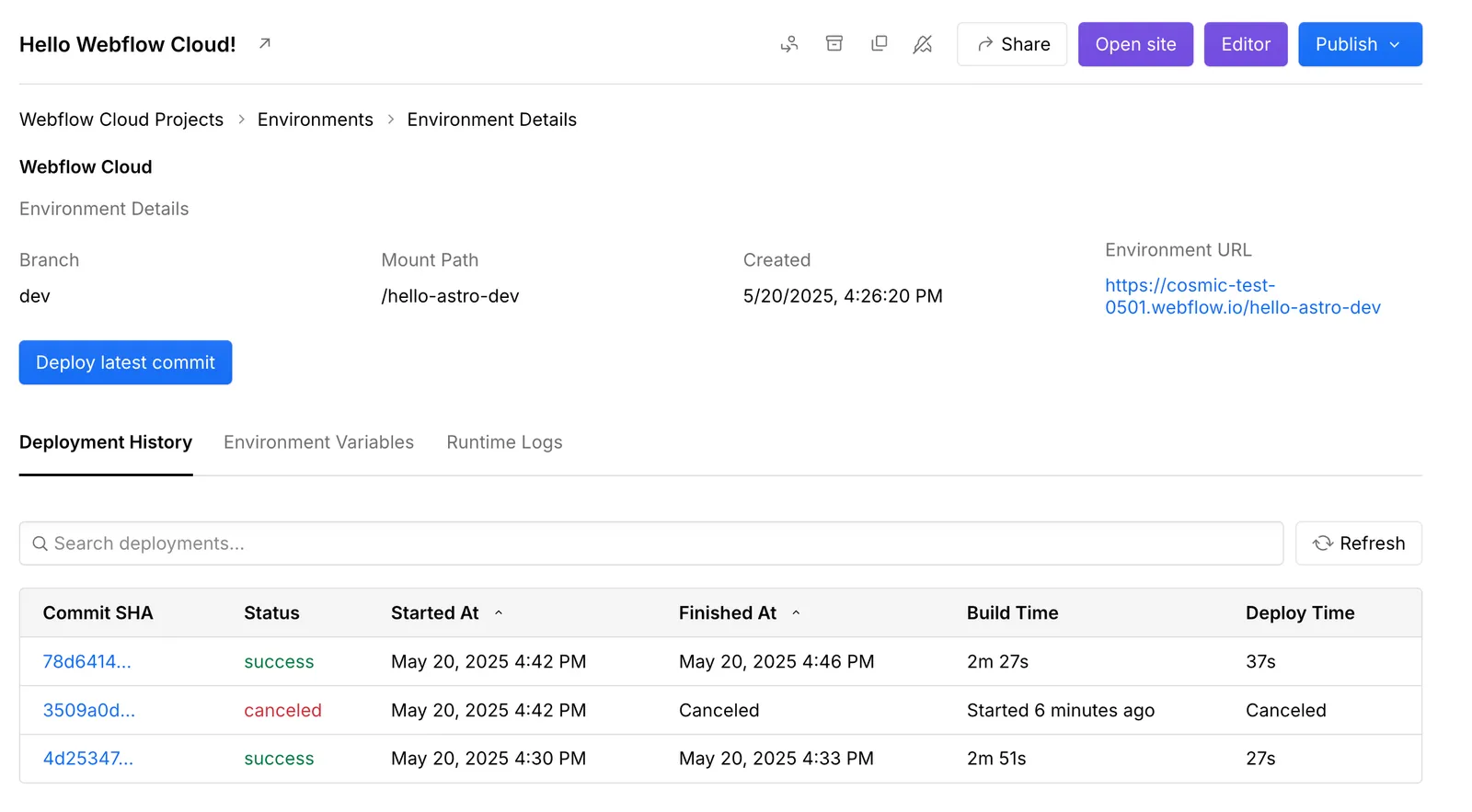
Each deployment appears in your environment's deployment history. The history provides:
* Deployment status (building, deploying, success, cancelled,failure)
* Deployment date and time
* Build and deployment duration
* Build and runtime logs
**In the event of a failed deployment, your environment continues running your last successful deployment**, ensuring zero downtime.
## Build logs
Build logs provide detailed information about how Webflow Cloud builds and deploys your app. To view build logs:
1. In Webflow Cloud, click your app to open the Environments Dashboard.
2. Click the environment name to open the Deployment Dashboard.
3. Click the Deployment ID (Commit SHA) to view the build log for that deployment.
Build logs are particularly helpful for:
* Debugging failed deployments
* Optimizing build performance
* Understanding dependency installation issues
* Tracking build progress
## Runtime logs
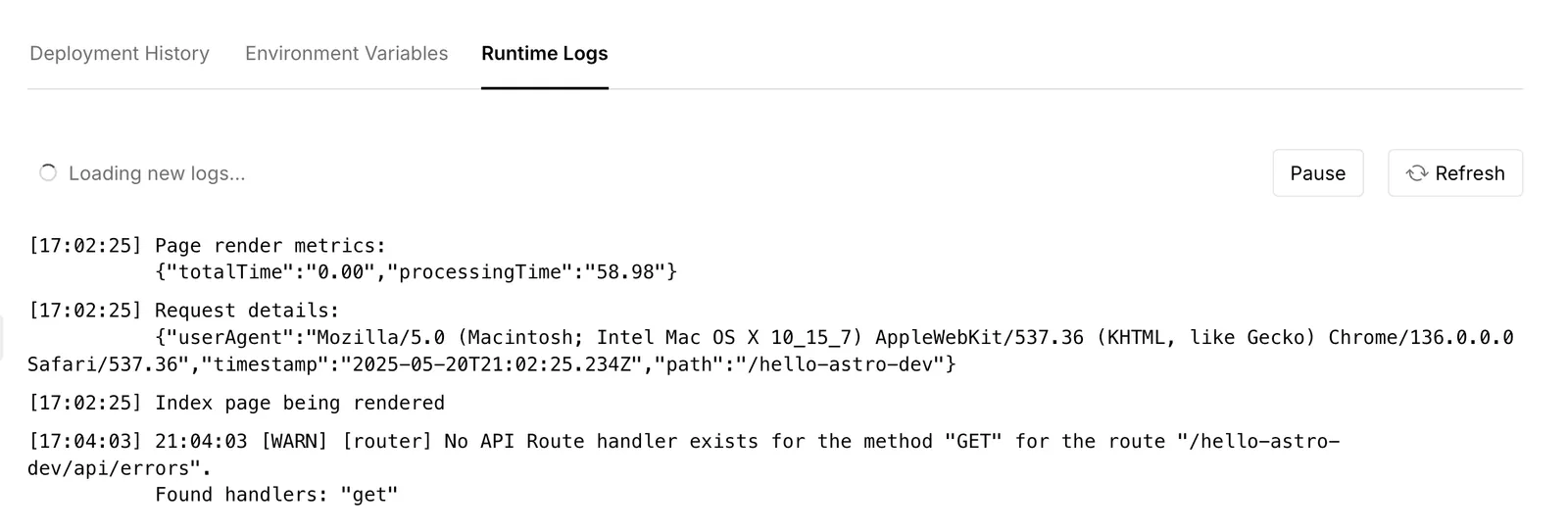
Runtime logs show you what's happening on your application's server after deployment. These logs capture server-side activity, including:
* Server-side function execution
* Application errors and exceptions
* Server-side console logs and debugging output
For example, if your application includes an API endpoint and a user makes a request to that endpoint, you'll see the corresponding server-side activity in the runtime logs.
To view runtime logs:
1. In Webflow Cloud, click your app name to open the Environments Dashboard.
2. Click the environment name to open the Deployment Dashboard.
3. Select the "Runtime Logs" tab.
> **Note**
>
> Runtime logs are helpful for debugging server-side issues and monitoring your application's API behavior in production.
## Rolling back deployments
If you need to revert to a previous version of your app:
1. Navigate to your GitHub repository
2. Revert your working branch to the desired commit
3. Push the changes to trigger a new deployment
> **Warning**
>
> Rolling back a deployment creates a new deployment with the previous code version. It doesn't restore the exact state of the previous deployment.
## Frequently asked questions
### Build issues
#### Why is Webflow Cloud not identifying my app at build?
Webflow Cloud detects framework apps from project files and can also use `cloud.framework` in `webflow.json`. Make sure:
* For framework apps, your framework dependency is in `package.json` at a supported version
* Your `package.json` is at the app path configured for your environment — if your app lives in a subdirectory of a monorepo, set that path in your environment settings
* For static apps, follow the checks in [Static apps](/webflow-cloud/static-apps#what-qualifies-as-a-static-app)
To skip detection and declare your framework explicitly, add a `webflow.json` at your app root:
**`webflow.json`**
```json title="webflow.json"
{
"cloud": {
"framework": "nextjs"
}
}
```
For no-framework static apps, see [Static apps](/webflow-cloud/static-apps).
#### Are my environment variables available during the build?
Yes. Both secret and non-secret environment variables are available to your application's build process, and they remain available to the deployed application at runtime. Secret values are value-redacted from build logs.
#### Why are my assets not showing up?
This is typically related to base path configuration. Check that assets referenced with plain ``, ``, or `