
MotherDuck
This guide walks you through configuring MotherDuck as a destination for your Webflow Analyze and Optimize data export.
Configuration steps
Create a database
Create a new database for data writing. Skip this step if you already have a database prepared.
- Log in to the MotherDuck account.
- Click the plus icon next to “Attached Databases”.
- Enter the desired name of your database.
Create an access token
Collect connection information and create an access token for the data transfer service.
-
In the navigation dropdown, select Settings.
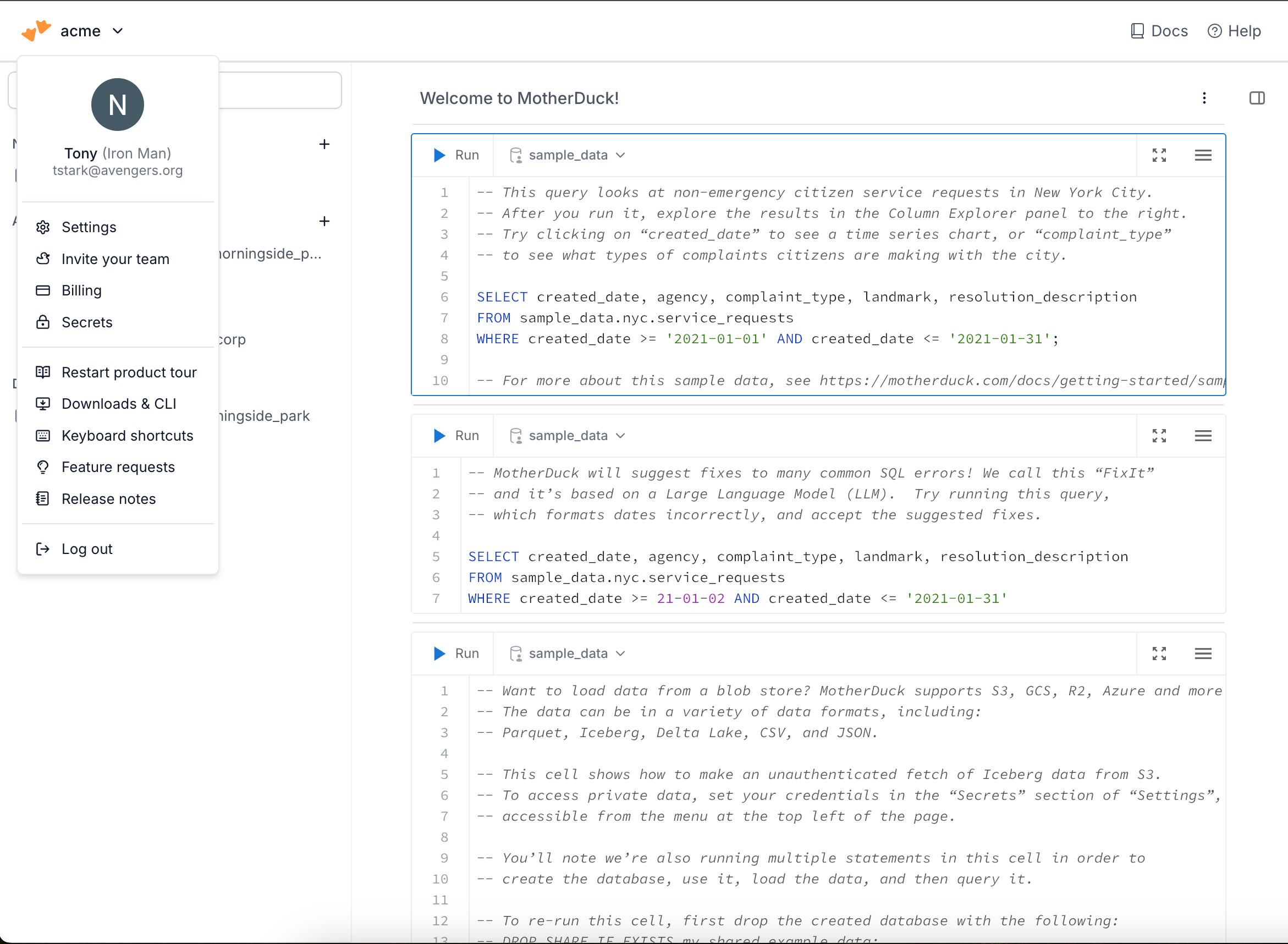
-
Click the Create token button to create an access token.
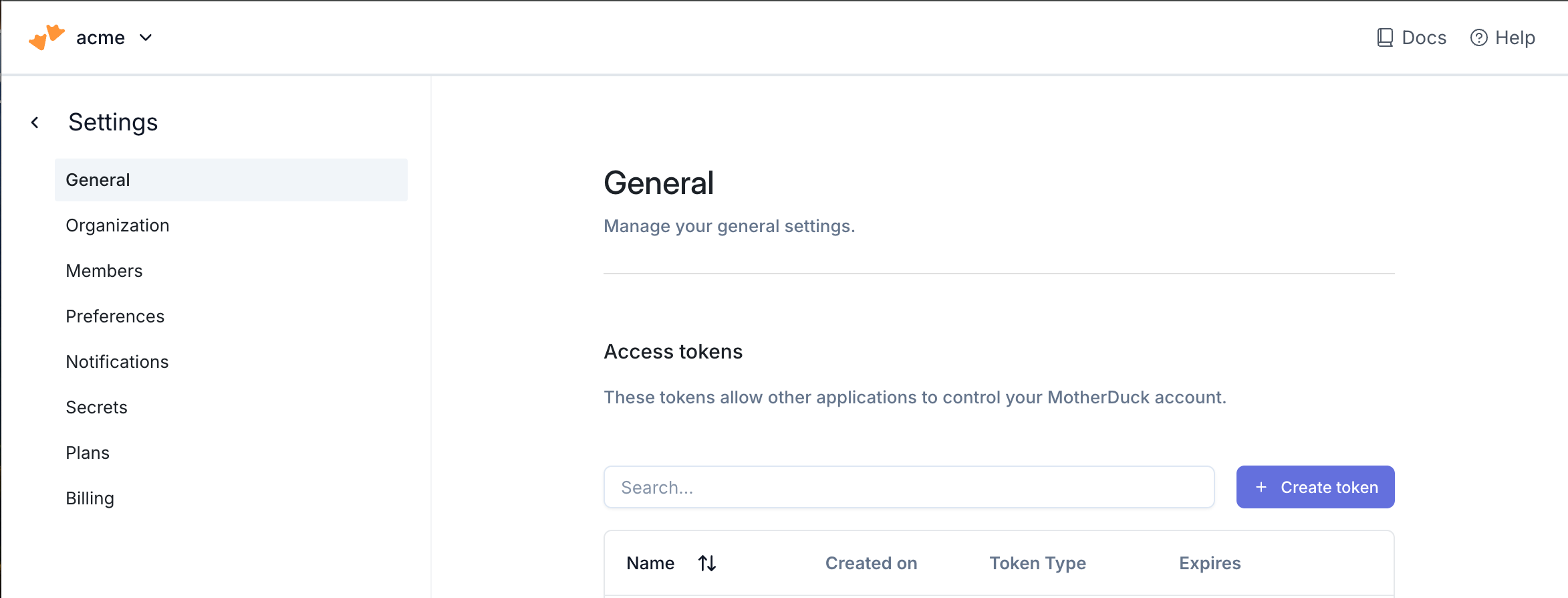
-
Name the token with a descriptive comment and assign the token lifetime. A longer lifetime will ensure you do not have to update the token as often. Ensure that the Token Type is set to “Read/Write Token”. Click Generate.
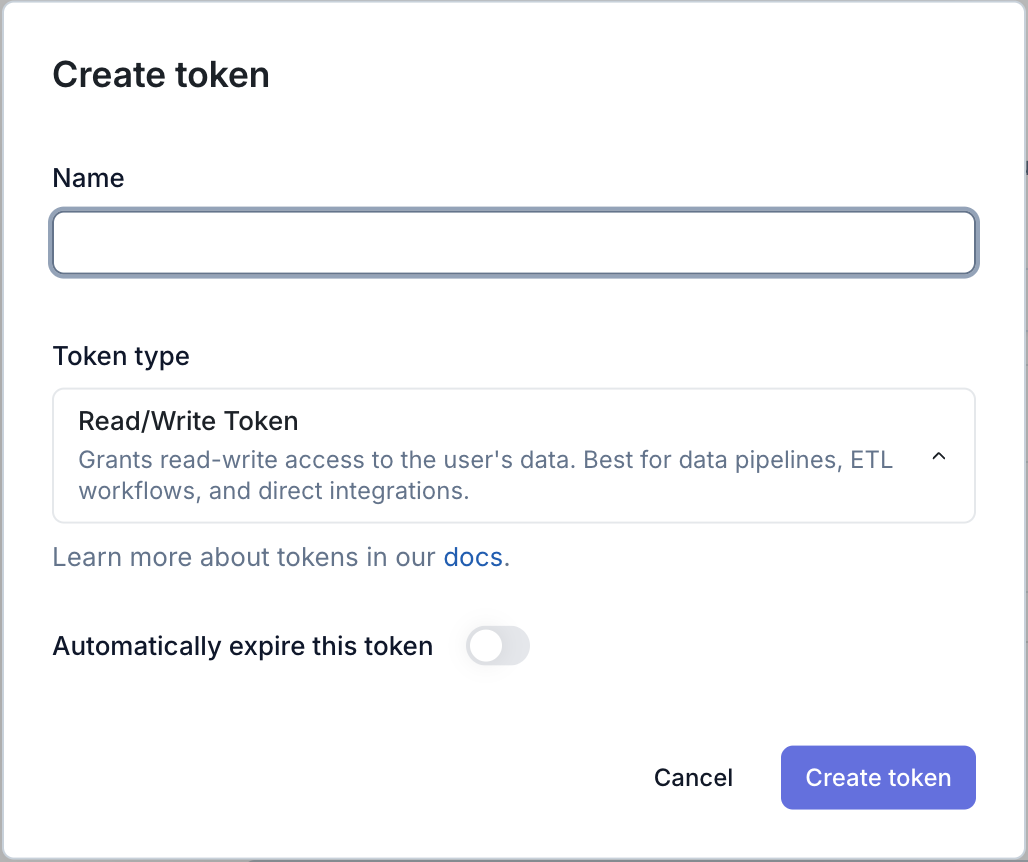
-
In the pop up that follows, copy the token and securely save the token.
Add your destination
Use the following details to complete the connection setup: database, your chosen schema name, and access token.
- Instructions for Analyze / Optimize for Webflow sites
- Instructions for Optimize for non-Webflow sites
