

Quick start: Generating AI code components
You can generate an AI code component with the Webflow AI Assistant by describing what you want the component to look like and how you want it to behave in plain language.
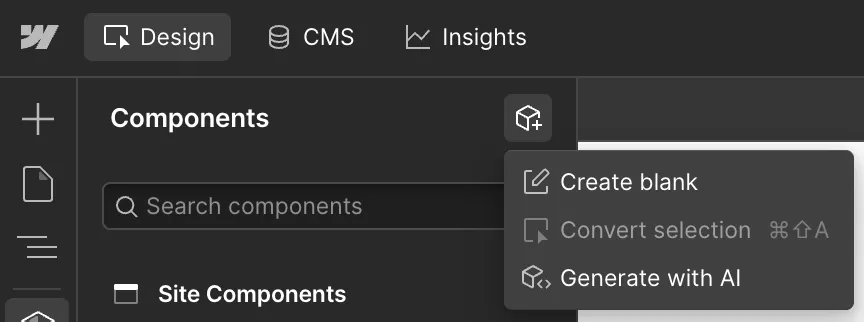
Prompt the AI Assistant
In the Generate a code component with AI window, give the AI Assistant a prompt for the new component. Here are some examples:
-
“I want to create a full-screen pricing component. It should have three columns for my different pricing tiers, starter, pro, and enterprise. Each column has a price estimate and a slot for a list of features of my data analytics platform that appear in that pricing tier. Above all three columns, there should be a slider that lets you slide from 100 to 100,000+, and it should have the label ‘visitors’ and a default value of 100. As you slide the visitors slider, each of the prices should update accordingly.”
-
Create a mortgage calculator with input fields for the principal, down payment, and interest rate. Show the monthly payment for a period of 10, 15, and 30 years.
-
Draw a line diagram of a house showing parts like the roof, windows, siding, door, and foundation. When the mouse hovers over one of these parts, show a popup with its name and the typical cost to repair it.
Generate the component
Press Enter and wait for the AI Assistant to generate the code for the component.
Preview and refine
Preview the component.
You can make further changes by editing the code in the Edit code component window yourself or by prompting the AI Assistant again, while you are on the canvas for the code component. For example, you can tell the AI Assistant to change styles, text, or the organization of the code component.
Tips for generating AI code components
- AI code components use the existing site styles and variables by default.
- You can upload images and files as examples.
- If you edit the generated code manually and then give the AI Assistant a new prompt, verify the result to ensure that the AI Assistant did not overwrite your code.
- If you have trouble with the assistant, click Clear thread at the top of the AI Assistant window or reload the page.
Limitations of AI code components
- To use AI with code components, you must create an AI code component by opening the Components panel and clicking New Component > Create with AI. You cannot use AI on an existing component or a code component that you imported, or copy an existing component.
- You must use the Webflow AI Assistant to work with AI code components; you cannot use other agents such as Claude or Cursor.
- You cannot visually edit an AI code component; instead, use the AI Assistant to make changes or make changes directly in the code.
- AI code components cannot access CMS collections.
- AI code components cannot have secrets or secure values; all code is visible to end users.
- AI code components use React only; other platforms such as Vue, Angular, and Svelte are not supported.
- You cannot export AI code components to an external codebase.
- Publishing an AI code component requires a CMS plan or above or a paid workspace; accounts without these plans can generate code components but cannot publish them.