

Claude Code
To connect Claude Code to the Webflow MCP server, follow these steps.
Install Claude Code CLI
If you haven’t installed Claude Code yet, follow the installation guide.
Verify the installation:
Add the Webflow MCP server
Use the CLI to add the Webflow MCP server:
This command adds the Webflow MCP server to your Claude Code configuration.
Authorize the MCP server and app
Start Claude Code:
When Claude Code is running, use the /mcp command to manage MCP servers:
Select the Webflow MCP server from the list. If you haven’t authenticated yet, Claude Code automatically opens a browser window that shows an OAuth login page where you can authorize the Webflow sites you want the MCP server to access and install the MCP Bridge App.
Managing multiple Claude Code connections
You can set up separate projects in Claude Code to manage authentication and settings for different sites. For example, if you are working on multiple Webflow sites, you can create a separate project for each, which keeps the authentication for each project separate and can help you track your token usage for each site.
Follow these general steps to set up projects in Claude Code and give them access to specific Webflow sites or Workspaces:
-
Create a folder on your computer for the Claude Code project. This project doesn’t need to have any site-related code in it; instead, it holds the Claude Code configuration for the project.
-
In the project folder, open Claude Code and run this command to connect to the Webflow MCP server in a configuration file that is limited to this folder:
Replace the variable
$PROJECT_NAMEwith a name for the project, such aswebflow-1ormy-webflow-site.The
-s projectargument tells Claude Code to add this MCP server to a configuration file that is scoped to this folder, instead of adding the server to the global Claude Code configuration. -
Reload Claude Code:
-
If you are using Claude Code in a terminal window, exit and reopen Claude Code.
-
If you are using Claude Code in an IDE, reload the IDE window. For example, if you are using VSCode, press Ctrl+Shift+P and run the command
Developer: Reload Window.
Claude Code does not have access to the updated local configuration until you reload Claude Code.
-
-
In a Claude Code window, run the command
/mcpto list the MCP servers. -
Select the Webflow MCP server and authenticate to it as usual, including selecting the Webflow sites or Workspaces to give the Claude Code project access to.
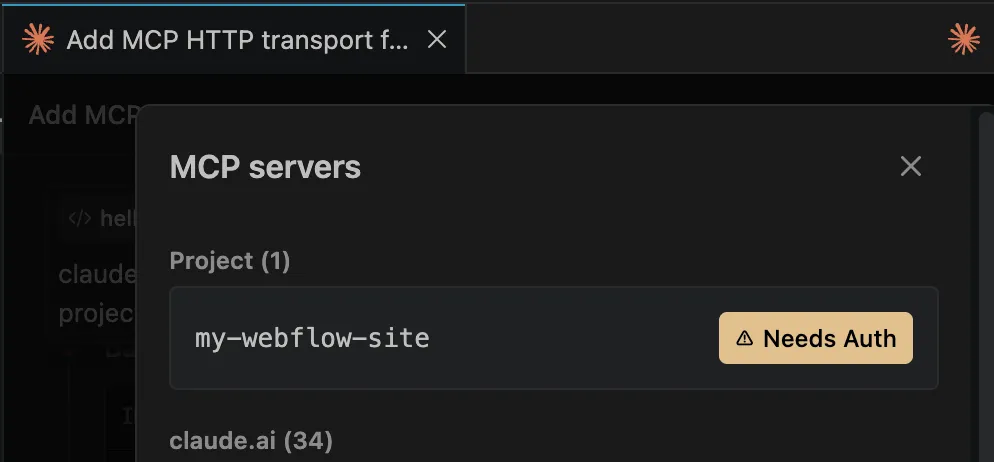
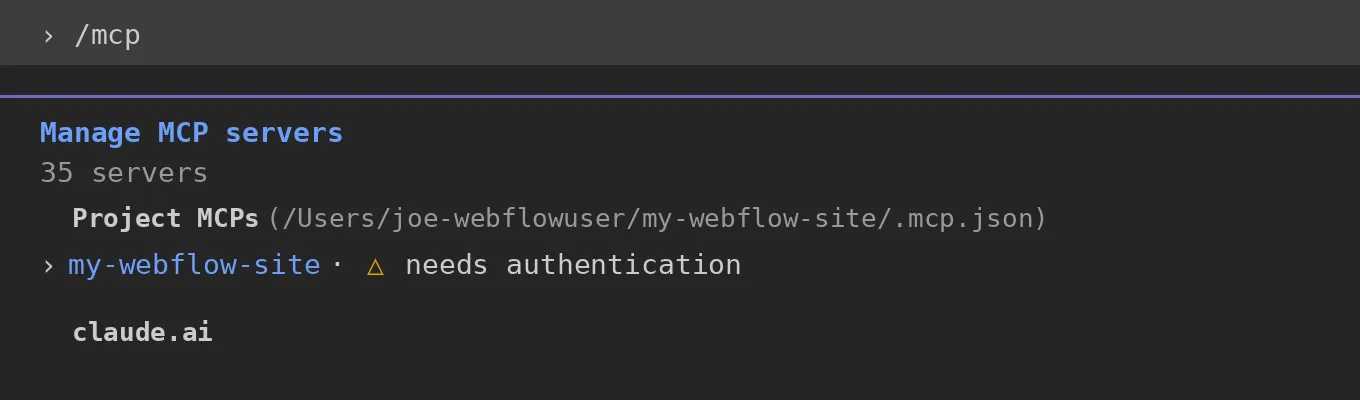
Be sure to select the MCP server in the project and not one of the default servers in the
claude.aidomain.For example, this screenshot shows the project-specific MCP server configuration in VSCode:
Similarly, this screenshot shows the project-specific MCP server configuration in Claude Code in a terminal window:
-
Verify that the instance of Claude Code has access to only the scope that you authenticated it to, such as by asking it to list the sites it has access to or the CMS collections in that site.
Now you can create multiple project folders, each with different access permissions to Webflow sites and Workspaces.
Next steps
Now that you’ve installed the MCP server, explore what you can do:


Browse ready-to-use prompts for image optimization, SEO audits, style refactoring, and more.


Install skills that help you accomplish common Webflow tasks through natural language.


Understand the architecture, authentication, and how the MCP server connects to Webflow’s APIs.