

Grok Build
Webflow provides a plugin that provides Grok Build (formerly Cursor) with direct access to the Webflow MCP server. If you prefer, you can connect manually, as described in Connecting Grok Build manually.
Using the Grok Build plugin
Grant access
The first time you use the Grok Build plugin, grant Grok Build access to your Webflow account and log in to your Webflow account if you are prompted to do so.
Connecting Grok Build manually
To connect Grok Build manually, click the Add to Cursor button below or follow the instructions below:


Install the MCP server on Grok Build
-
In the left sidebar, click Customize and select the MCPs filter.
-
Click New MCP Server (Add a Custom MCP Server). Grok Build opens
mcp.json. -
Paste the following configuration into
.cursor/mcp.json(or add thewebflowpart to your existing configuration):.cursor/mcp.jsonUse project-specific MCP configuration to avoid repeated auth promptsConfigure
mcp.jsonper project instead of using Grok Build’s global settings. This prevents repeated authentication prompts when opening multiple Grok Build windows without being authenticated. -
Save and close the file
Authorize the MCP server and app
- In the left sidebar, click Customize and select the MCPs filter.
- Next to the Webflow MCP server, click Authenticate.
- Grok Build automatically opens an OAuth login page where you authorize the Webflow sites you want to access and install the MCP Bridge App.
- When authorization is complete, the Webflow MCP indicator turns green.
Limit the number of sites for security and performance. To reauthorize, open the Webflow MCP server in Customize → MCPs and click Logout under Environments.
MCP servers perform more efficiently with smaller codebases. In Grok Build, create a project when using the MCP server to reduce tool call overhead and improve response times.
Re-authenticating to Grok Build
You can re-authenticate and choose different sites and Workspaces to access later by following these steps:
-
In the left sidebar, click Customize and select the MCPs filter.
-
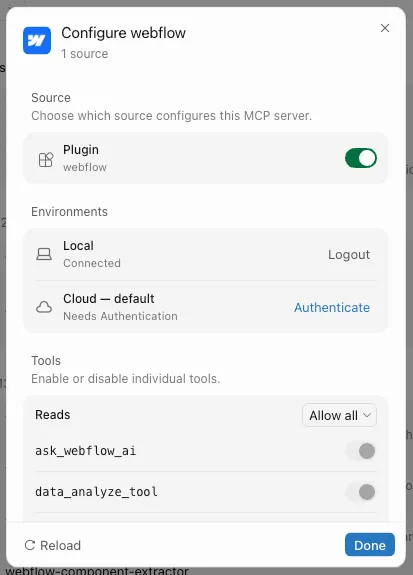
Click the Webflow MCP server to open its configuration dialog.
-
Under Environments, click Logout next to Local:
-
Click Done. In the MCPs list, click Authenticate next to the Webflow MCP server.
-
Follow the prompts to log in to your Webflow account and connect sites and Workspaces again.
Next steps
Now that you’ve installed the MCP server, explore what you can do:


Browse ready-to-use prompts for image optimization, SEO audits, style refactoring, and more.


Install skills that help you accomplish common Webflow tasks through natural language.


Understand the architecture, authentication, and how the MCP server connects to Webflow’s APIs.