

Slack
Webflow connects to Slack through Slackbot and the Webflow agent, both powered by Webflow’s MCP server. Use them to manage your sites, run SEO updates, and publish CMS content without leaving Slack. Webflow for Slack is also listed as an app in the Webflow Marketplace.
Slackbot and the Webflow agent each need to be connected separately, though both support the same Webflow capabilities:
- DM Slackbot — Generally available and free to use.
- DM or mention
@Webflow— Available in public beta.
Installing the Webflow app in Slack
A Workspace admin needs to install the Webflow app in Slack once before anyone can connect their account.
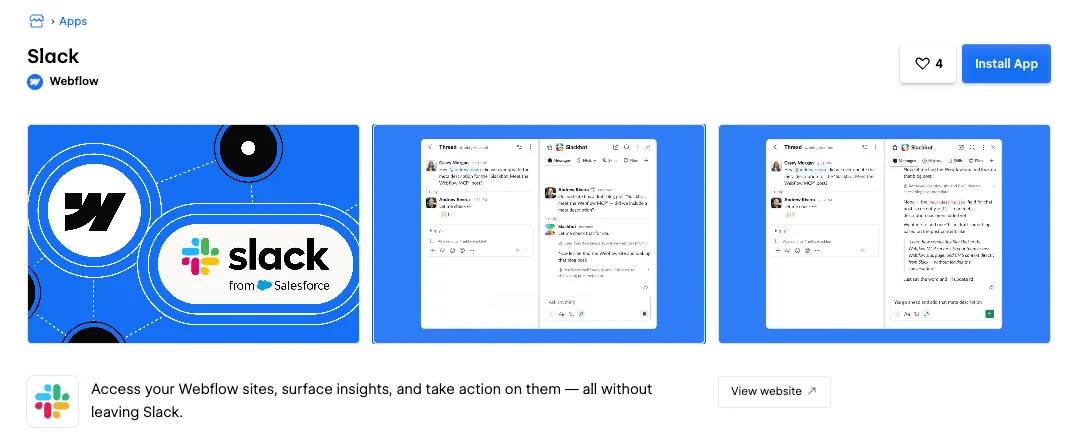
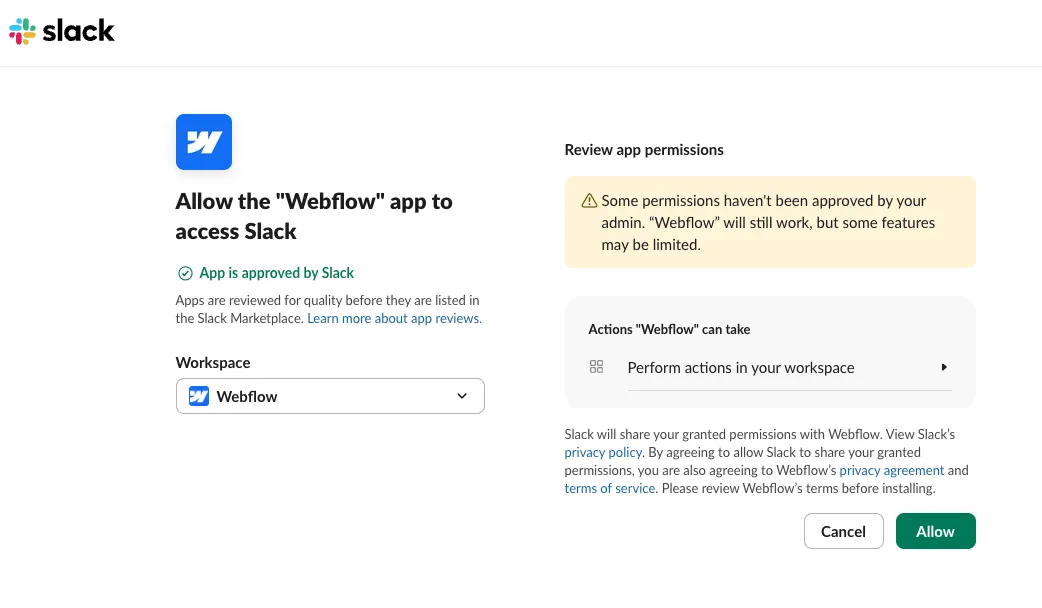
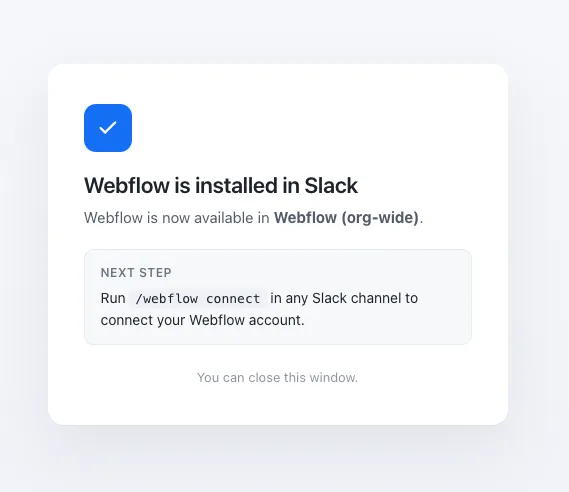
Connecting your Webflow account
Choose which integration to connect
Click Connect for Slackbot (next to “Slackbot + Webflow MCP”) to DM Slackbot directly, or Connect for the agent (next to “@Webflow agent (Beta)”) to use @Webflow in channels and threads.
Slackbot and the Webflow agent are connected independently. Repeat these steps for the other integration if you want both direct messages and @Webflow channel mentions.
Using Webflow in Slack
DM Slackbot or the Webflow agent
Start a direct message and describe what you need in plain language. Try prompts like:
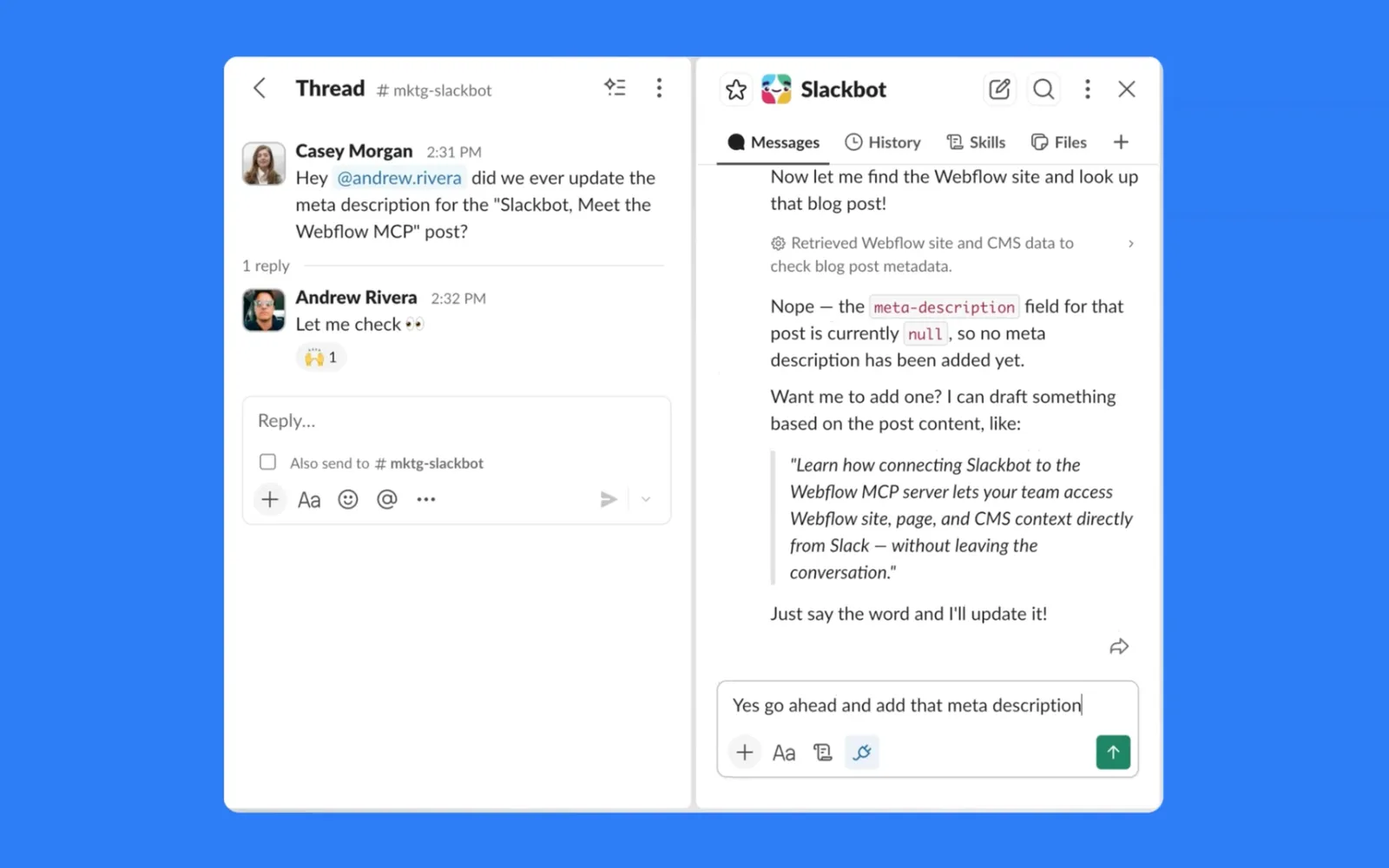
For example, if a question comes up in a Slack thread, you can DM Slackbot to check the CMS directly and it retrieves the answer using the Webflow MCP server.
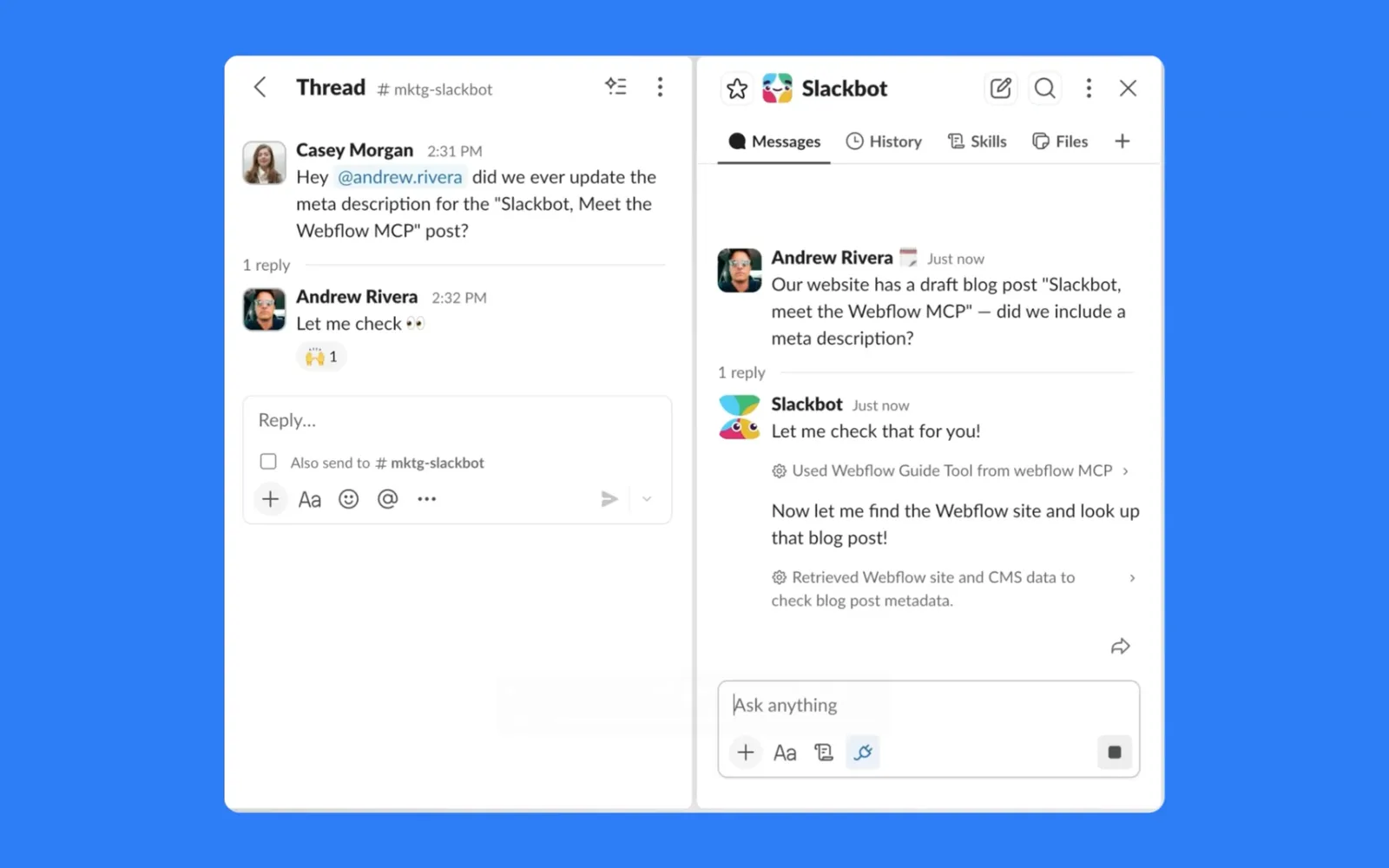
Slackbot can then draft and apply the fix, like adding a missing meta description, right from the conversation.
The Webflow agent is currently in public beta and free to use. AI credits will apply to non-Slackbot workflows once it’s generally available. Use during the beta is subject to Webflow’s Beta Program Terms.
Managing the Slackbot integration
To control what Slackbot can read and write in your authorized sites:
- Start a chat with Slackbot.
- Click the Apps icon below the chat.
- Click Manage apps.
- For Webflow, click Manage.
- Set your desired read and write permissions for the approved sites.
- Click Save.
To turn the integration on or off:
- Start a chat with Slackbot.
- Click the Apps icon below the chat.
- Click the Apps icon, then View all.
- Check or uncheck Webflow.
Next steps
Now that you’ve connected Webflow to Slack, explore what you can do:


Browse ready-to-use prompts for image optimization, SEO audits, style refactoring, and more.


Install skills that help you accomplish common Webflow tasks through natural language.


Understand the architecture, authentication, and how the MCP server connects to Webflow’s APIs.