

Working with webhooks
Webhooks are a powerful way to integrate your applications and services with Webflow, allowing you to receive real-time updates whenever specific events occur on your site. By setting up webhooks, you can automate workflows, trigger external processes, and synchronize data across different platforms without any manual intervention.


Webhook requests
When an event occurs, Webflow will send a POST request to a specified URL.
The webhook body will be a JSON resource object that relates to the event. The request headers will include:
- A
Content-Typeheader set toapplication/json - A
x-webflow-timestampwith the time the webhook was sent - A
x-webflow-signatureheader containing the request signature. Read on for information about validating request signatures.
Below is an example of webhook event data.
JSON Example
Properties
Creating a webhook
In this tutorial, we’ll walk through creating a webhook to listen for new submissions to a contact form on a site. Whenever someone submits this form, Webflow will send a notification to the specified destination. Additionally, we’ll cover how to verify that the webhook requests you’re receiving are genuinely from Webflow, ensuring secure and reliable communication with your application.
If you’d prefer a way to set up webhooks without using the API, you can easily configure them through the Webflow dashboard. Please note, that webhooks created through the dashboard will not include the request headers needed to validate request signatures.
Prerequisites
- A site token or bearer token from a Webflow Data Client App with the
forms:readscope. - A Webflow test site. You can use the Biznus template to quickly set up a site equipped with a contact form.
- A service to accept an HTTPS request. While we’ll be using https://webhook.site in this tutorial, you’re free to choose any platform.
Step 1. Create a form
Before we get started working with the API, we’ll first need to create a form and publish our site. If you already have a working form on your site, you can skip this step. To create a site with a form, we’ll use the Biznus template, which already has a form on its contact page.
-
Clone the Biznus template to your development Workspace.
-
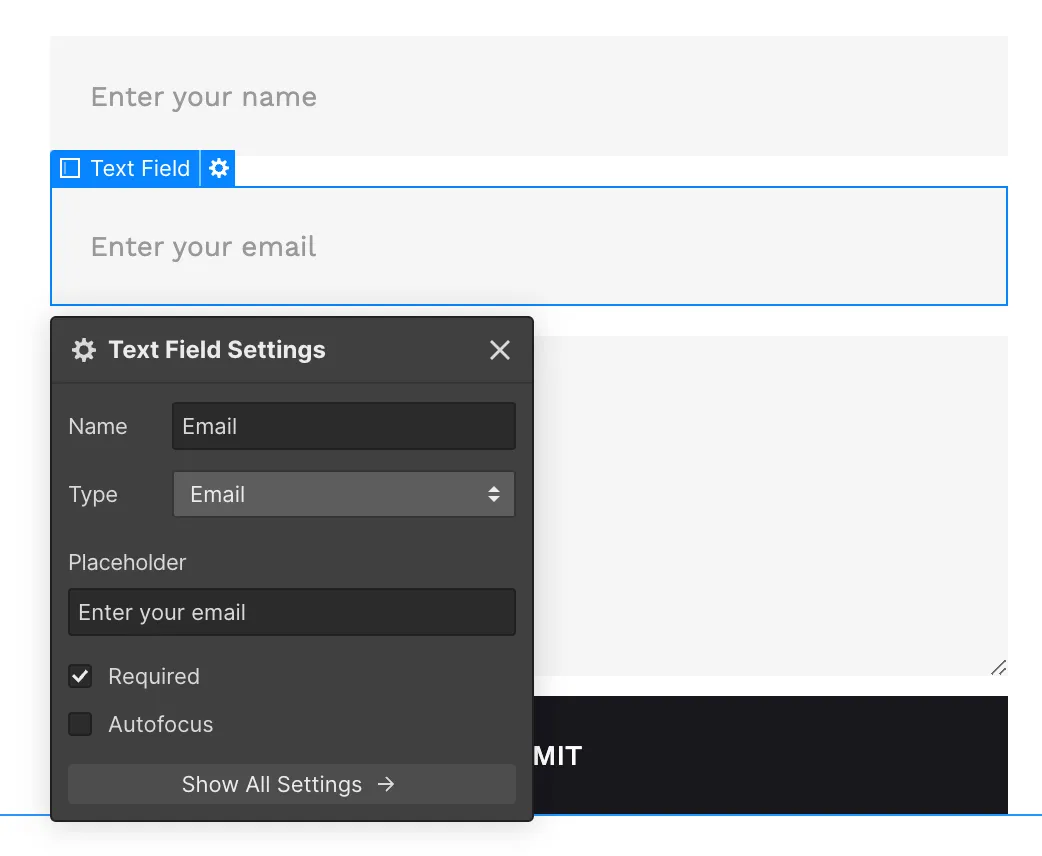
Go to the Contact Page to view your form. Here, you can review your form’s fields. Ensure each field has a unique name. These field names will be used as keys in the webhook’s payload.
-
Publish the site by clicking the publish button in the top right corner.
Step 2. Create a webhook
Webhooks require the following elements to function:
- Site ID: The unique identifier of your Webflow site.
- Trigger Type: Specific event the webhook will monitor.
- Destination URL: Unique URL prepped to accept HTTP requests.
Once we have these elements, we can create the webhook by sending a POST request to the Create Webhook endpoint.
-
Get the Site ID. There are two ways to get your Site ID, you can access the ID via site settings, or send a request to the List Sites endpoint.
Site Settings
API Request
-
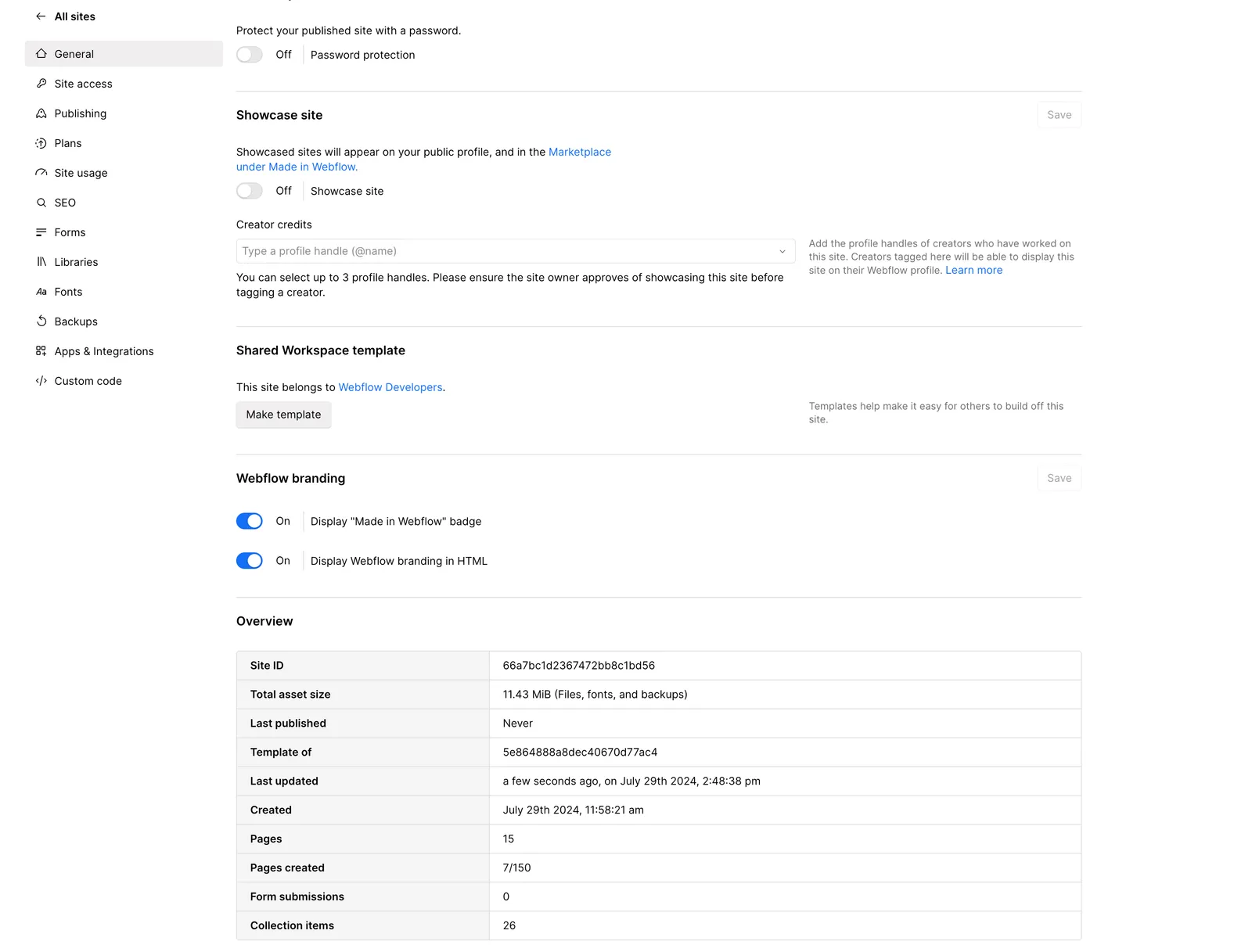
In the designer, click the Webflow Icon in the top left corner, and select “Site Settings” from the menu.
-
In your site settings, scroll down to the “Overview” section to find your Site ID
-
-
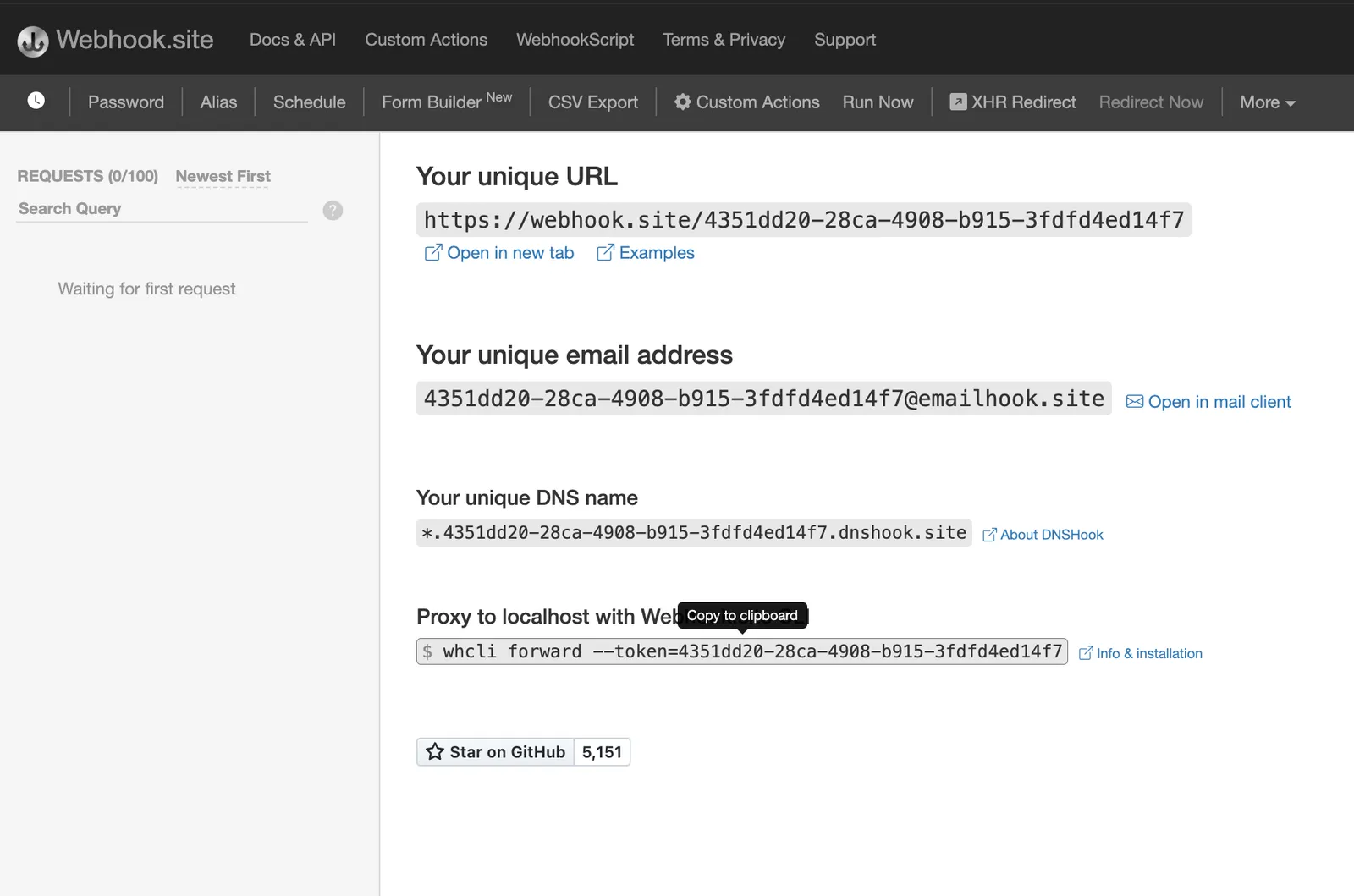
Get your destination URL. Navigate to webhook.site and copy your unique URL. This URL will be used as the destination where Webflow will send webhook events.
-
Send a
POSTrequest to the Create Webhook endpoint. In the request, you’ll include thesite_id,url, andtriggerTypeofform_submission.Additionally, the
form_submissiontrigger supports afilterparameter, allowing you to specify the name of the form you’d like to receive notifications for. This is particularly helpful if you have multiple forms on a site.Use our interactive API Docs to send requestsYou can also use the interactive API Reference to quickly send a POST request to the Create Webhook endpoint without writing any code.
-
Review the response. After successfully establishing your webhook, you should receive a confirmation similar to the one shown below:
Successful response
Step 3. Send a test submission
Once you’ve successfully created the Webhook to listen for new form submissions, you can test it by navigating to the form on your site and submitting a response.
Once you’ve submitted a response, head over to webhook.site to view the POST request from Webflow. If the request is successful, you’ll see the Request Details, Headers, and Payload sections. These details should match the JSON object shown below.
Notice the headers included in the response: x-webflow-timestamp and x-webflow-signature. These headers are crucial for verifying the authenticity of the webhook.
Webhook retries
Your service should return a 200 response to show that the webhook was successfully captured. If the response status is anything else, the webhook will be retried up to three more times at which point the request will be considered failed and will no longer be retried.
Failure conditions
Webflow considers the following scenarios as failure conditions:
- Non-200 HTTP status code response: If we receive any response other than a valid HTTP 200 response, it is regarded as a failure.
- Redirects: If the webhook encounters redirects while attempting to deliver the payload, it will be treated as a failure.
- SSL Certificate Issues: If we cannot successfully negotiate or validate your server’s SSL certificate, it will be marked as a failure.
- Timeouts: Webflow expects a swift response during webhook delivery. If there are prolonged delays in receiving a response from your server, it will be considered a failure.
Deactivation of webhooks
If Webflow repeatedly encounters failure conditions while attempting to deliver a webhook payload, we will take the following action:
- Deactivation: We will deactivate your webhook to prevent further delivery attempts.
- Notification: You will be notified of the webhook deactivation via email.
To reactivate your webhook or if you have any questions regarding a deactivated webhook, please don’t hesitate to reach out to our support team.
Limits
Understanding the limits imposed by Webflow can help you design and manage your webhooks more efficiently:
Event types
This is the full list of webhook events available in Webflow. For complete documentation of webhook events with payloads, please see the webhook events documentation.
Validating request signatures
Webflow provides methods to verify that requests are genuinely coming from the Webflow API by using signatures included in the request headers. These signatures vary based on the creation method of the webhook.
Request headers
x-webflow-timestamp: The time the webhook was sent, represented in Unix epoch time format.x-webflow-signature: The request signature, formatted as a SHA-256 HMAC hash. It uses either the site token secret or the OAuth app’s client secret as the signing key.
To ensure the authenticity of a webhook request from Webflow, validate the request signature using the provided headers and your webhook’s associated signing key.
Signing keys
Depending on the creation method of the webhook, you’ll receive a different signing key.
- Site token secret : For webhooks created through site settings via a site token after April 14, 2025, each webhook will have its own secret key. You’ll need to store this key securely and use it as your signing key.
- OAuth app client secret : For webhooks created through an OAuth application, you won’t receive a separate secret key. Instead, you’ll use your OAuth app’s client secret as the signing key.
Recommended: Use the provided signature validation method
Webflow recommends use of the provided SDK method to verify the incoming webhook requests’ signatures.
As signature implementations are subject to change, Webflow will support updates to the method to ensure smooth transitions for developers. All you will need to do is update the package version to benefit from these changes.
-
Extract data from the HTTP Request
headers: Keep the headers as a record-like objectbody: Stringify the entire request body
-
Await the results
Javascript
Steps to manually validate the request signature
If you need to validate the request signature without use of the SDK, follow the steps below to achieve the same effect as the SDK method.
-
Generate the HMAC hash
- Retrieve the timestamp from the
x-webflow-timestampheader. - Concatenate the timestamp and the request body with a colon (
:) separator. The format should be: - Use your OAuth application’s client secret (or your secret key if the webhook is not associated with an OAuth Application) and the SHA-256 hashing algorithm to generate the HMAC hash.
- Retrieve the timestamp from the
-
Compare the generated hash with the provided signature Compare the generated HMAC hash with the
x-webflow-signatureheader from the request. A match confirms the request’s legitimacy; otherwise, it should be considered potentially tampered with or fraudulent. -
Verify the timestamp Check the
x-webflow-timestampheader to ensure the request is recent. A request older than 5 minutes may indicate a replay attack. Calculate the request’s age as follows:If the difference exceeds 5 minutes (300,000 milliseconds), consider the request potentially compromised.
See below for examples that accept an incoming HTTPS request and validate the signature: