

Google BigQuery
This guide walks you through configuring Google BigQuery as a destination for your Webflow Analyze and Optimize data export.
Prerequisites
- By default, BigQuery authentication uses role-based access. You will need to use the Webflow Data Sync Service Account email to grant access:
datasync-webflow@prql-prod.iam.gserviceaccount.com.
Understanding role-based authentication in BigQuery
Two service accounts involved
- Destination service account (in your GCP project): You create this service account in Step 1. It has permissions to BigQuery and Cloud Storage and is the identity that performs work inside your project.
- Webflow Data Sync Service Account: Provided to you in the prerequisites. It does not have direct permissions to BigQuery or Cloud Storage. Instead, it is granted permission to “assume” the other service account role (using short-lived tokens via Service Account Token Creator/User), enabling least-privilege, auditable access without sharing keys.
Configuration steps
Create service account in BigQuery project
-
In the GCP console, navigate to the IAM & Admin menu, click into the Service Accounts tab, and click Create service account at the top of the menu.

-
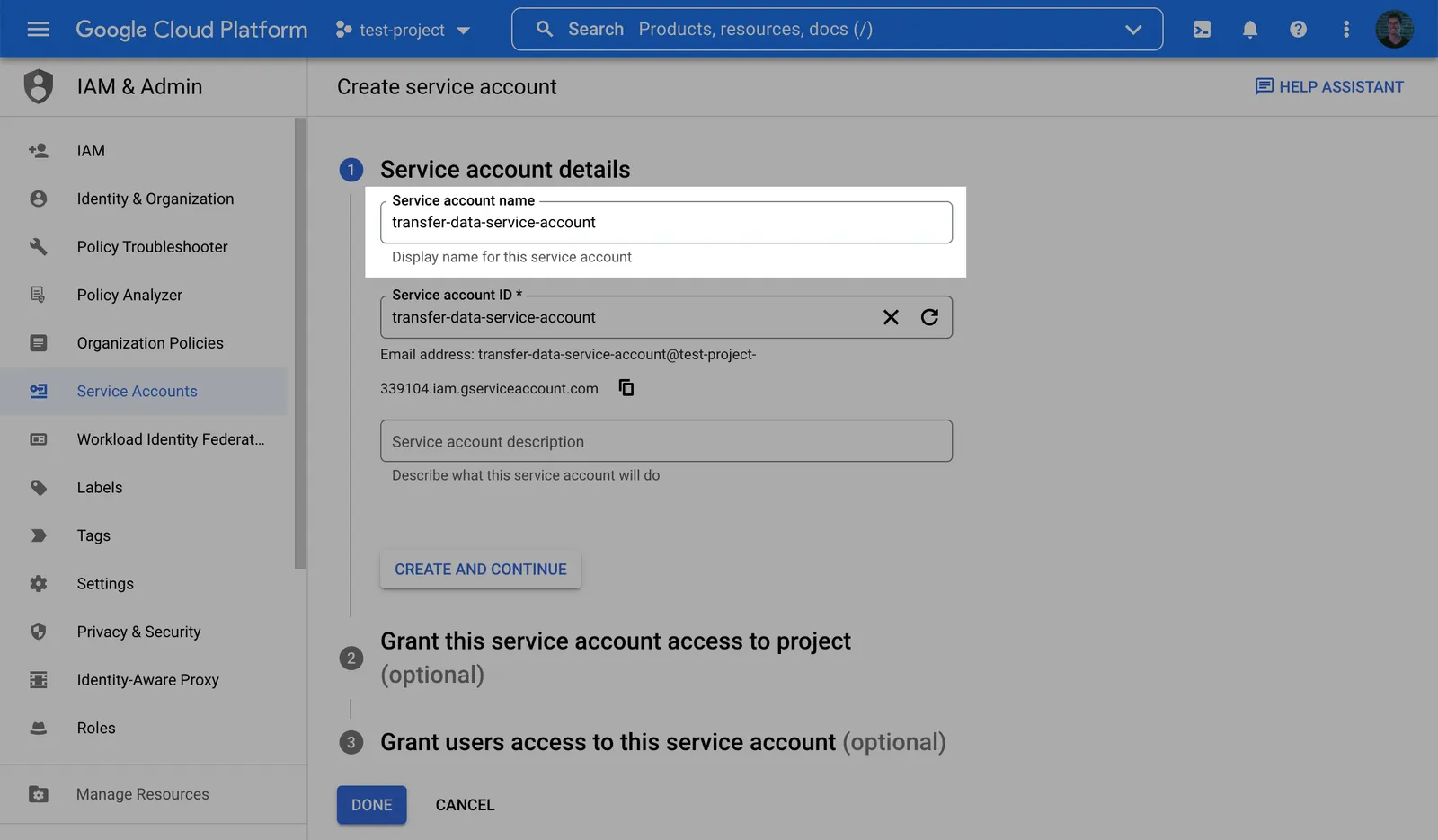
In the first step, name the new Destination service account and click Create and Continue.
-
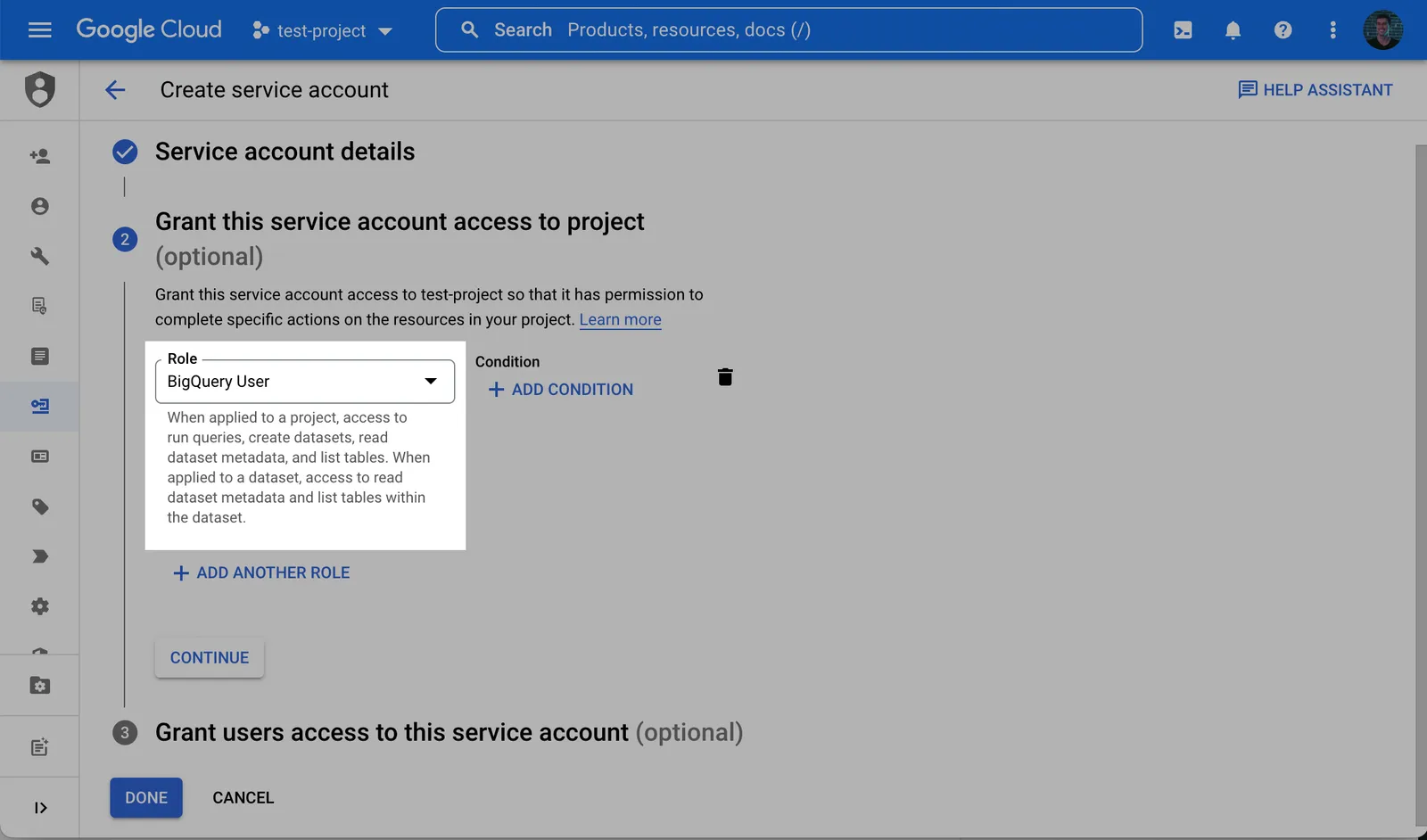
In the second step, grant the new Destination service account the BigQuery User role. This allows creating datasets, submitting load/query jobs, and accessing required metadata during setup.
Alternative: Dataset Already Exists — Why: use least-privilege when your dataset is pre-provisioned.
- Project: grant
bigquery.jobs.createto the Destination service account. - Dataset: grant BigQuery Data Owner OR a custom role including at minimum:
bigquery.tables.create,bigquery.tables.delete,bigquery.tables.get,bigquery.tables.getData,bigquery.tables.list,bigquery.tables.update,bigquery.tables.updateData,bigquery.routines.get,bigquery.routines.list.
- Project: grant
-
Click Done to finish creating the account.
-
In the service accounts list, click the newly created Destination service account to open its details and make a note of the email (this is different from the Webflow Data Sync Service Account from the prerequisites).
-
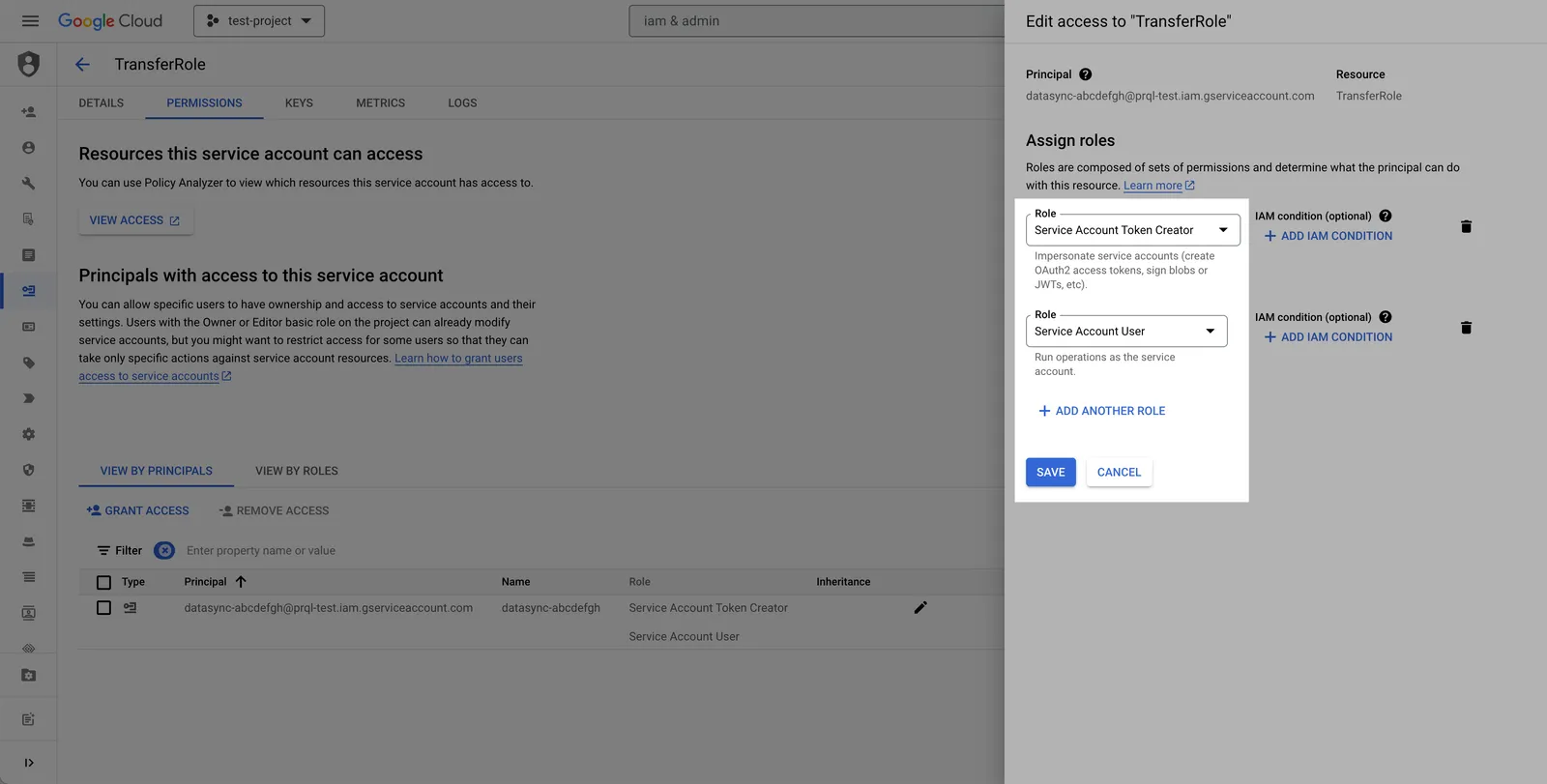
Navigate to the Principals with access tab, click Grant Access, and add the following principal and roles:
-
Principal: the provided Webflow Data Sync Service Account (see prerequisites)
-
Roles to grant: Service Account Token Creator, Service Account User
Alternative: Key-based Authentication — Why: only when policy requires, not recommended and presents higher security risk than impersonation.
- Generate a JSON key for the Destination service account and use it to authenticate.
- Steps: IAM & Admin → Service Accounts → open the Destination service account → Actions → Manage keys → Add key → Create new key → Key type: JSON → Create. Securely store the key.
-
Create a staging bucket
-
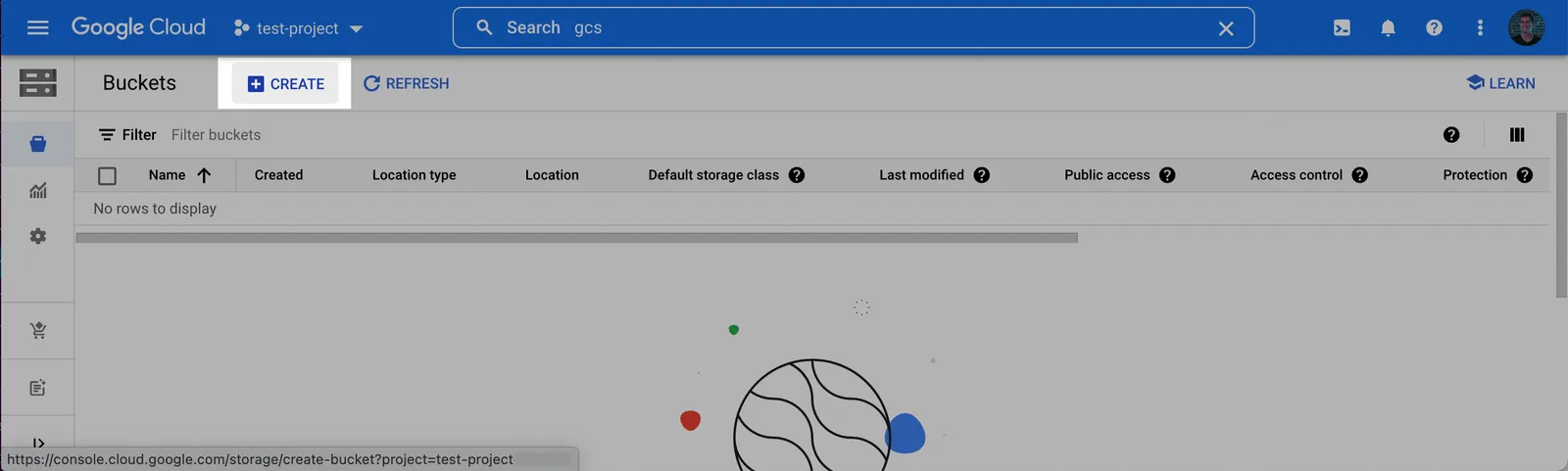
Log into the Google Cloud Console and navigate to Cloud Storage. Click Create to create a new bucket.
-
Choose a name for the bucket. Click Continue. Select a location for the staging bucket. Make a note of both the name and the location (region).
Choosing a
location(region)The location you choose for your staging bucket must match the location of your destination dataset in BigQuery. When creating your bucket, be sure to choose a region in which BigQuery is supported (see BigQuery regions)
- If the dataset does not exist yet, the dataset will be created for you in the same region where you created your bucket.
- If the dataset does exist, the dataset region must match the location you choose for your bucket.
-
Click Continue and select the following options according to your preferences. Once the options have been filled out, click Create.
-
Ensure the bucket is not public. We recommend enabling Uniform bucket-level access and keeping all Public access blocked.
-
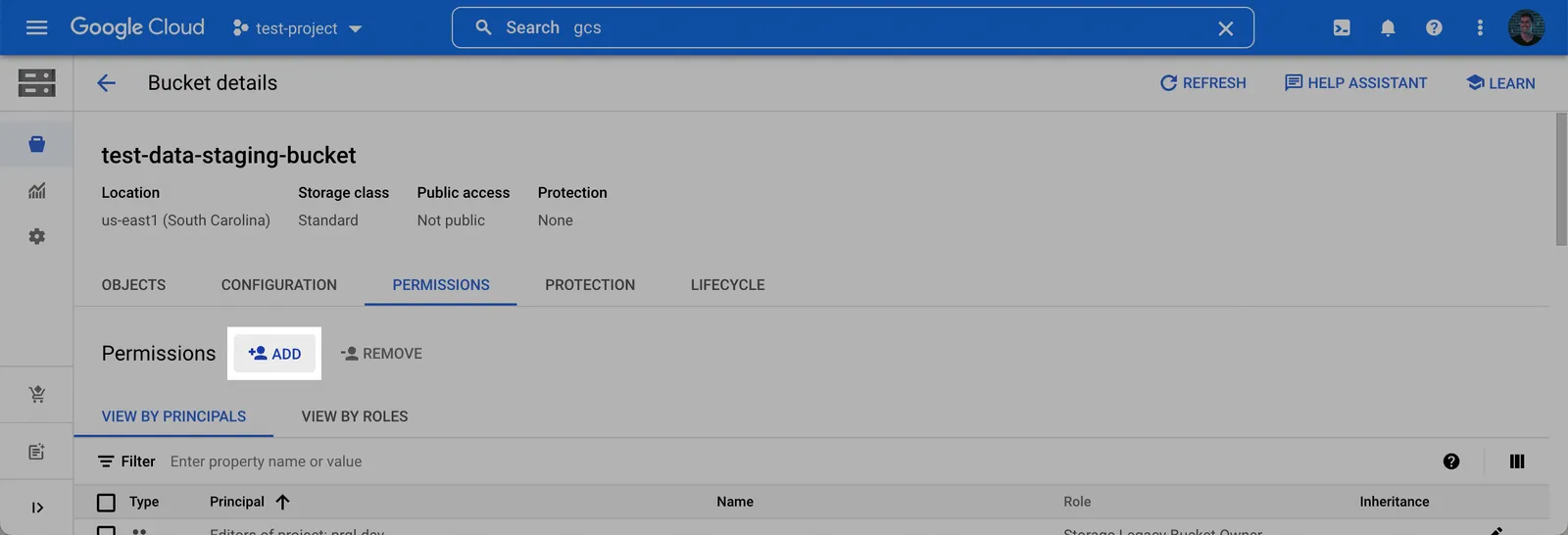
On the Bucket details page that appears, click the Permissions tab, and then click Add.
-
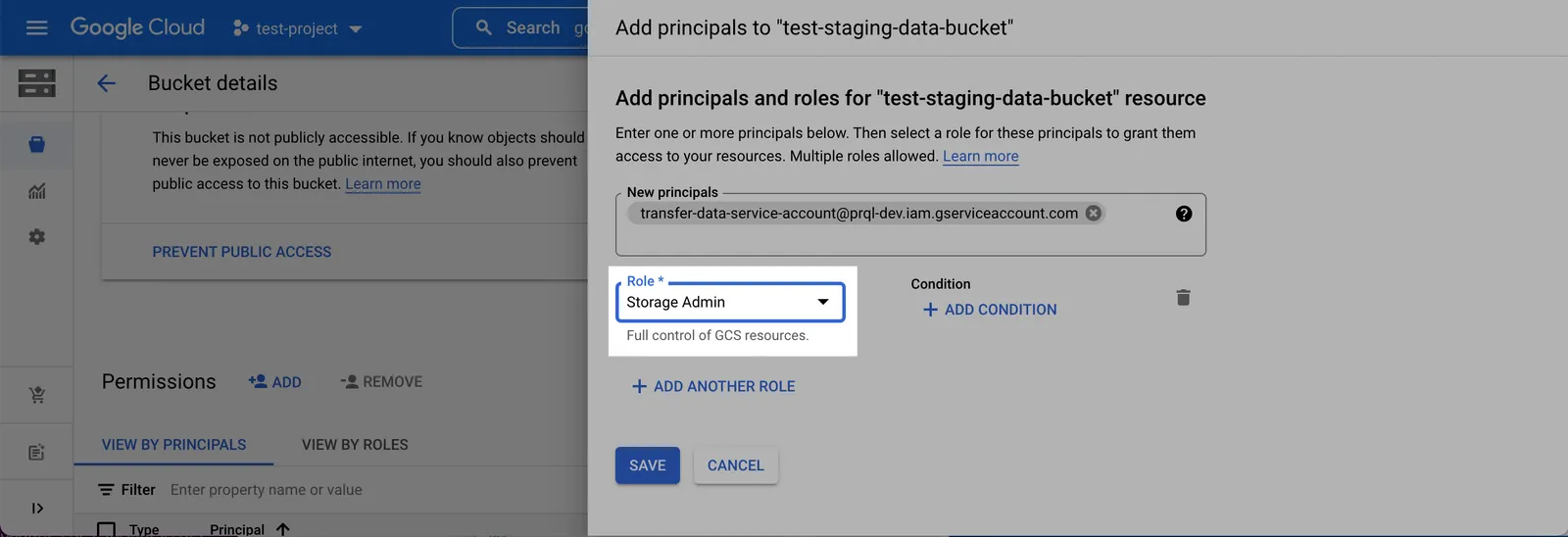
In the New principals field, add the Destination service account created in Step 1, select the Storage Admin role, and click Save.
Alternative: Understanding GCS Bucket Scope — Why: reduce privileges while preserving required functionality.
- We strongly recommend using a new, dedicated bucket dedicated solely to data transfers for data isolation and to simplify permissions management.
However, if policy requires tighter scope than Storage Admin, you can grant only the following minimum actions to the Destination service account:
storage.buckets.get,storage.objects.list,storage.objects.get,storage.objects.create,storage.objects.delete.- How: use a custom role, or provide both Storage Legacy Bucket Reader + Storage Object User.
Optional: Add a short retention lifecycle policy
You may configure a lifecycle rule on the staging bucket to automatically delete objects older than 2 days as the bucket is not used to persist data. In the bucket Lifecycle tab, add a rule with action “Delete object” and condition “Age: 2 days”. Note that transfer logic automatically cleans up files after transfer completion, so this is an optional step.
Find Project ID
-
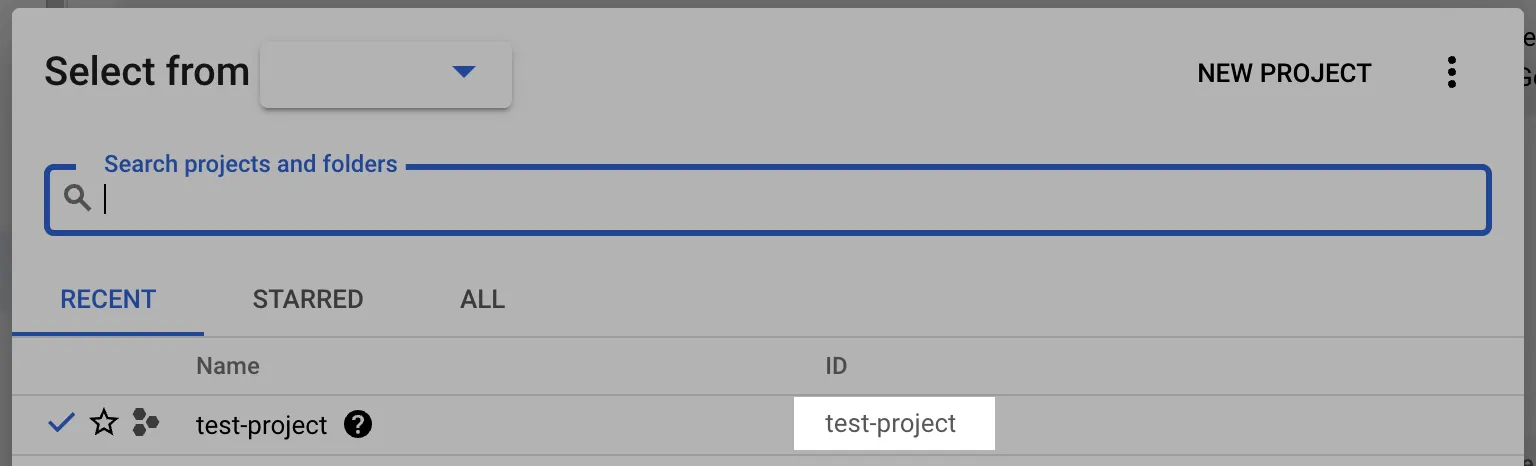
Log into the Google Cloud Console and select the projects list dropdown.
-
Make note of the BigQuery Project ID.
Domain-restricted sharing supported
This connection supports Google Cloud organization policies that restrict identities by domain. If your organization enforces domain-restricted sharing, you can allowlist our principal according to Google’s guidance on restricting identities by domain. See the Google Cloud documentation: Restricting identities by domain. Contact support to receive the customer ID to add to your allow list.
Add your destination
Use the following details to complete the connection setup: Project ID, Bucket Name, Bucket Location, Destination Dataset Name, and Destination service account name.
- Instructions for Analyze / Optimize for Webflow sites
- Instructions for Optimize for non-Webflow sites
Permissions checklist
- Destination service account exists in your project.
- Project: Destination service account has BigQuery User. If dataset is pre-created, instead grant project
bigquery.jobs.create+ dataset-level Data Owner (or custom role with the minimum table/routine permissions listed above). - On the Destination service account: grant the Webflow Data Sync Service Account the Service Account Token Creator and Service Account User roles.
- Staging bucket is non-public and in the same region as the BigQuery dataset.
- Staging bucket: Destination service account has Storage Admin. If using tighter scope, ensure minimal object and bucket permissions are granted.
- Optional: lifecycle rule deletes objects after ~2 days.
FAQs
Why is a GCS bucket required?
We use staging-assisted load to use BigQuery’s native bulk-upload path, maximizing throughput to your destination.
How long does data remain in the GCS bucket?
Data is not persisted in the staging bucket and is deleted after each transfer. You may optionally add a lifecycle rule to auto-delete objects after ~2 days.
Is BigQuery supported across regions?
Yes. BigQuery is supported across all GCP-supported regions. Ensure your BigQuery dataset and staging bucket are located in the same region.
I've updated permissions - why am I still seeing errors?
GCP IAM services can often take up to 10 minutes to propagate. Please wait a few minutes and try again.
Why are two service accounts involved?
You create one service account in your project with BigQuery/Storage permissions, and we use our service account to impersonate yours. This means we never handle your private keys, all operations appear in your audit logs, and you can revoke access anytime through your own IAM permissions.