

Google Cloud Storage
This guide walks you through configuring Google Cloud Storage as a destination for your Webflow Analyze and Optimize data export.
Prerequisites
- By default, GCS authentication uses role-based access. You will need to use the Webflow Data Sync Service Account email to grant access:
datasync-webflow@prql-prod.iam.gserviceaccount.com.
Configuration steps
Create a service account
-
In the GCP console, navigate to the IAM & Admin menu, click into the Service Accounts tab, and click Create service account at the top of the menu.
-
In the first step, name the service account that will be used to transfer data into Cloud Storage and click Create and Continue. Click Continue in the following optional step without assigning any roles.
-
In the Grant users access to this service account step, within the Service account users role field, enter the provided Service account (see prerequisite) and click Done.
-
Once successfully created, search for the created service account in the service accounts list, click the Service account name to view the details, and make a note of the email (note: this is a different email the Webflow Data Sync Service Account).
-
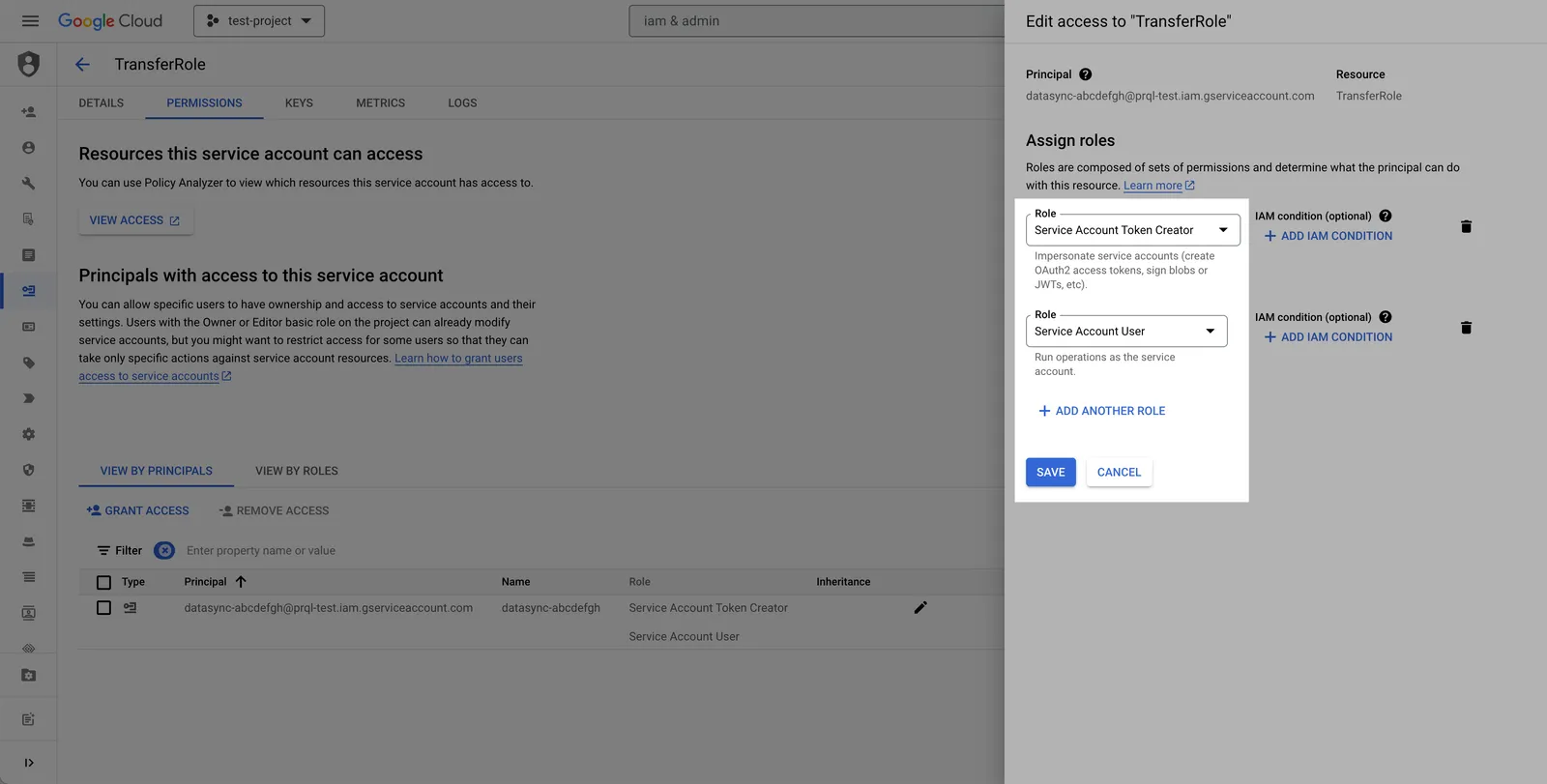
Select the permissions tab, find the provided principal name (Service account from the prerequisite), click the Edit principal button (pencil icon), click Add another role, select the Service Account Token Creator role, and click Save.
Alternative authentication method: HMAC Access Key & Secret
Role-based authentication is the preferred authentication mode for Google Cloud Storage based on GCP recommendations. However, HMAC Access Key ID & Secret Access Key is an alternative authentication method that can be used if preferred. An HMAC key is a type of credential and can be associated with a service account or a user account to access Google Cloud Storage.
-
Navigate to the Cloud Storage page.
-
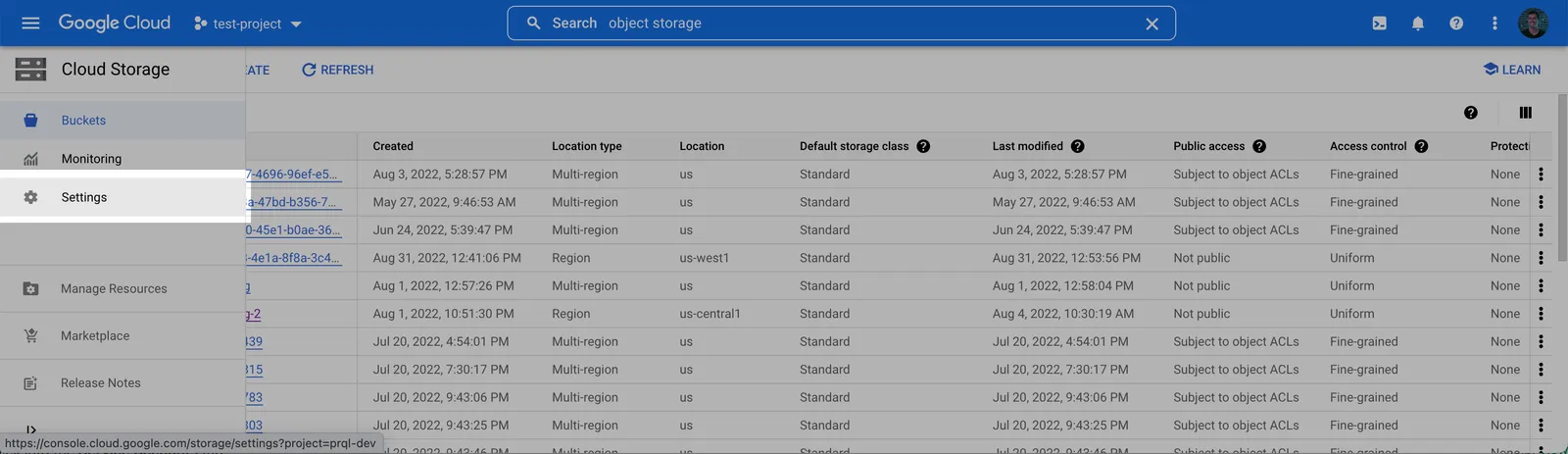
Click into the Settings tab on the left side menu.
-
Navigate to the Interoperability tab and click the Create a key for a Service Account button.
-
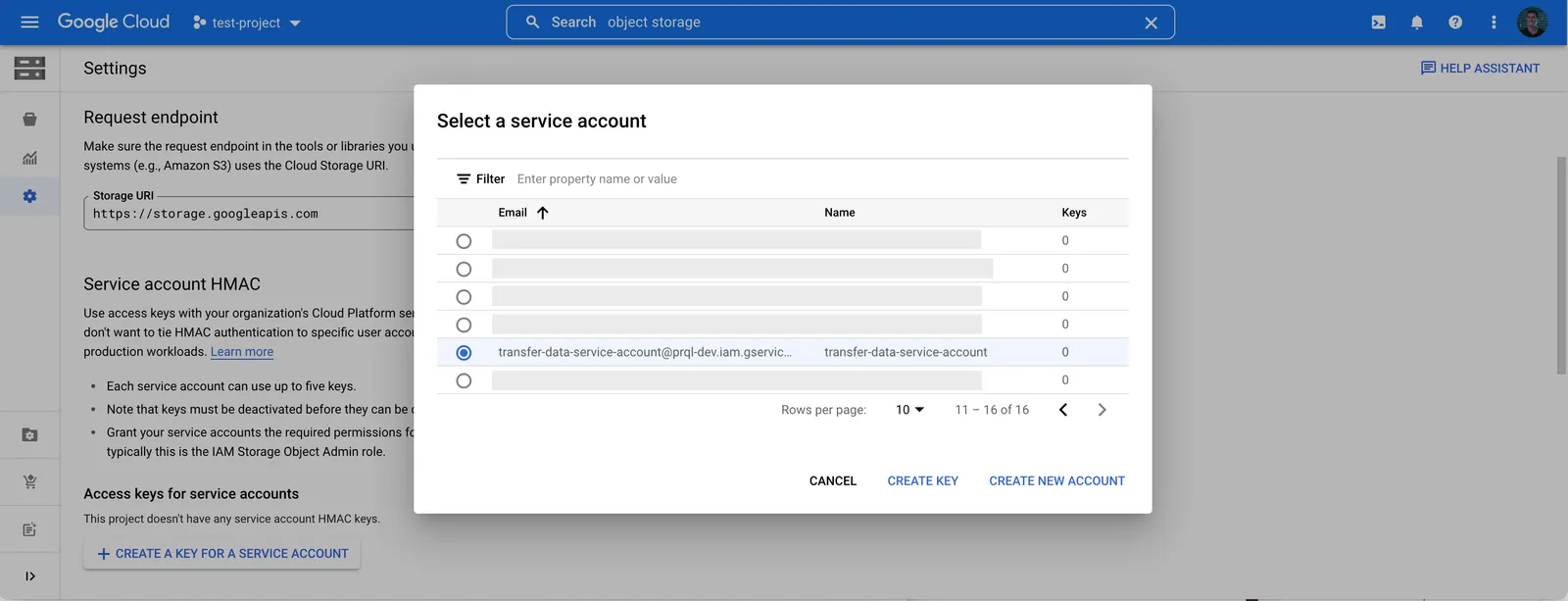
Select the Service Account created in Step 1, and click Create key.
-
Make a note of the Access key and Secret.
-
Create destination GCS bucket
-
Navigate to the Cloud Storage page.
-
Click Create.
-
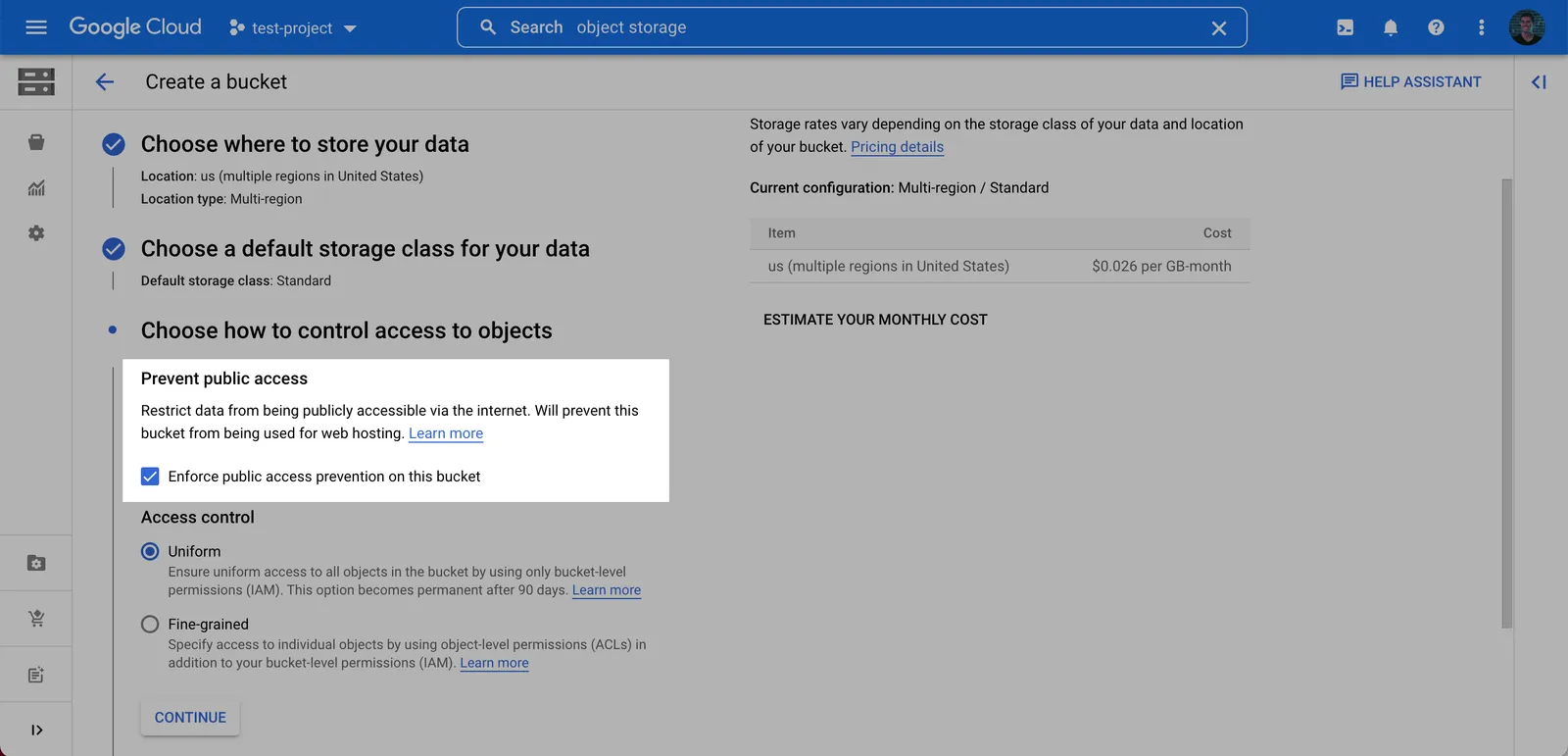
Enter a bucket name, choose a region. Note: at the Choose how to control access to objects step, we recommend selecting Enforce public access prevention on this bucket.
-
After choosing your preferences for the remaining steps, click Create.
Recommendation: dedicated bucket for data transfers
Use a unique bucket for these transfers. This:
- Prevents resource contention with other workloads
- Avoids accidental data loss from mixed lifecycle or cleanup rules
- Improves security by reducing surface area and enabling tighter, destination-scoped policies
-
On the Bucket details page for the bucket you created, select the Permissions tab, and click Grant access.
-
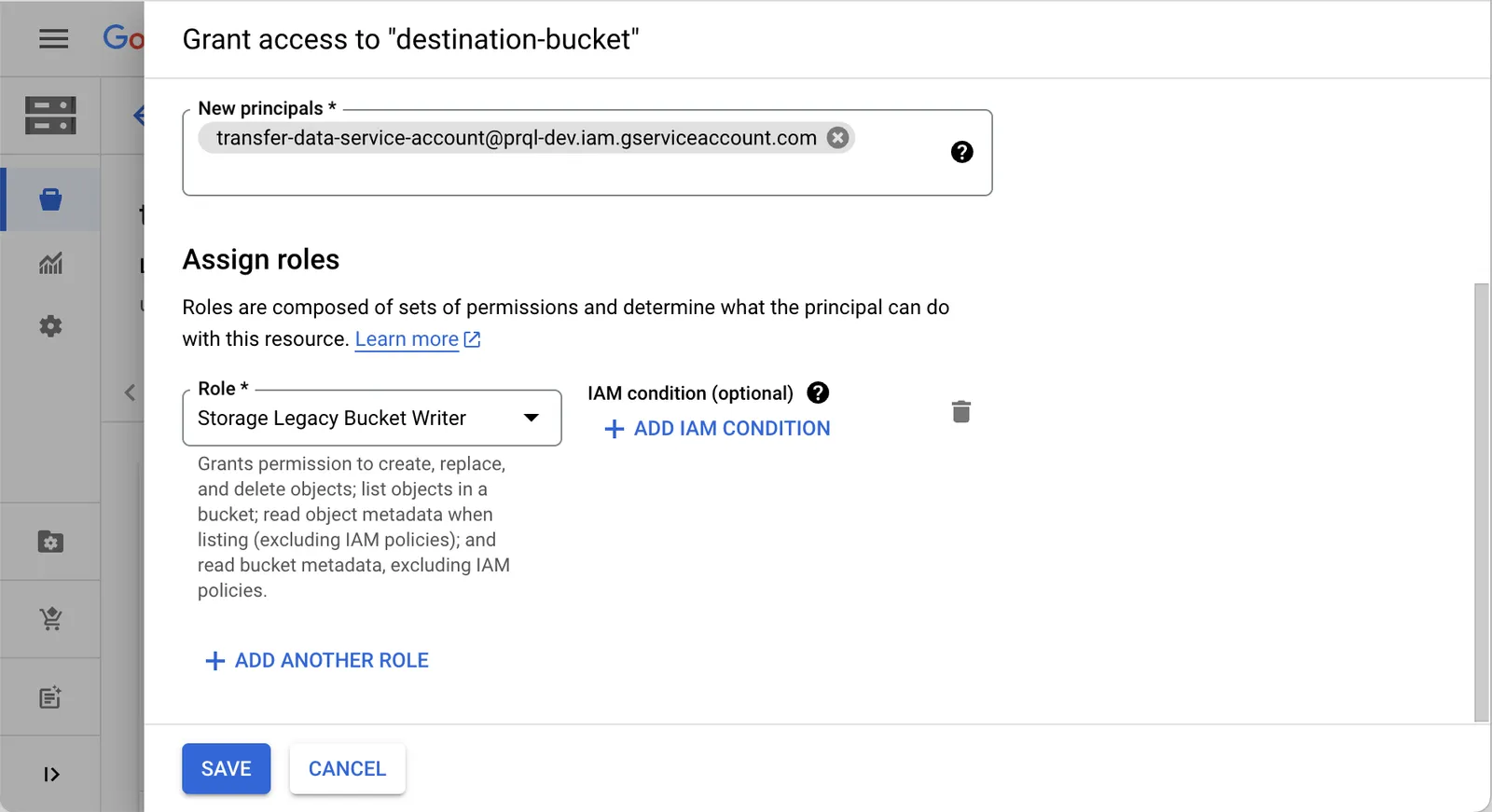
Grant access to the principal (Service Account) you created in Step 1 (Note: this is the service account you created, not the service account from the prerequisite), and assign the Role: Storage Legacy Bucket Writer. Click Save.
Add your destination
Use the following details to complete the connection setup: bucket name, your chosen folder name for the data, and your Service account email.
- Instructions for Analyze / Optimize for Webflow sites
- Instructions for Optimize for non-Webflow sites
Permissions checklist
- Service account has write access to the bucket (e.g., Storage Legacy Bucket Writer), or an equivalent custom role including:
storage.buckets.getstorage.objects.list,storage.objects.get,storage.objects.create,storage.objects.delete
- If using service account impersonation, the token creator role is granted to the impersonating principal
FAQ
How is the GCS connection secured?
Recommended: use a service account with role-based access (no long-lived user credentials). Optionally, HMAC keys can be used when policy requires, but short-lived tokens and least-privilege roles are preferred.
How is data organized in the bucket?
Data lands in Hive-style partitions per model: <folder>/<model_name>/dt=<transfer_date>/<file_part>_<transfer_timestamp>.<ext>. To write to the bucket root, enter . as the folder name.
What file formats are supported?
Parquet (default/recommended), CSV, and JSON/JSONL.
How are large datasets written?
Files are automatically split; multiple files may be written per model per transfer.
How do I know when a transfer completed?
Each transfer writes a manifest file per model under _manifests. Files are written per model per transfer in the format: _manifests/<model_name>/dt=<transfer_date>/manifest_{transfer_id}.json.
Why do I sometimes see duplicates?
Object storage is append-only. The change detection process uses a lookback window to ensure no data is missed, which can create duplicates. Downstream pipelines should deduplicate on primary keys prioritizing the most recent transfer window; manifest files can help bound the set of files to read.
What if I change the bucket or folder?
New files are appended to the new location. Existing data remains in the old location.
Are there file size limits?
No explicit size/row limits for GCS; files are split automatically based on volume and performance heuristics.